How to Make a Mechanical Keyboard Quieter: A Practical Guide
Published: 23 Oct 2026
A mechanical keyboard feels great to type on, but its loud clicks and clacks can disturb others. This can be a problem when you work from home, study, or use your keyboard late at night.
The noise may come from the switches, hard key impacts, loose stabilizers, or desk vibrations. Finding the source helps you choose the right fix.
The good news is that you may not need a new keyboard. This guide explains how to make a mechanical keyboard quieter with simple tips and advanced fixes. It also helps you choose the right solution for your keyboard.
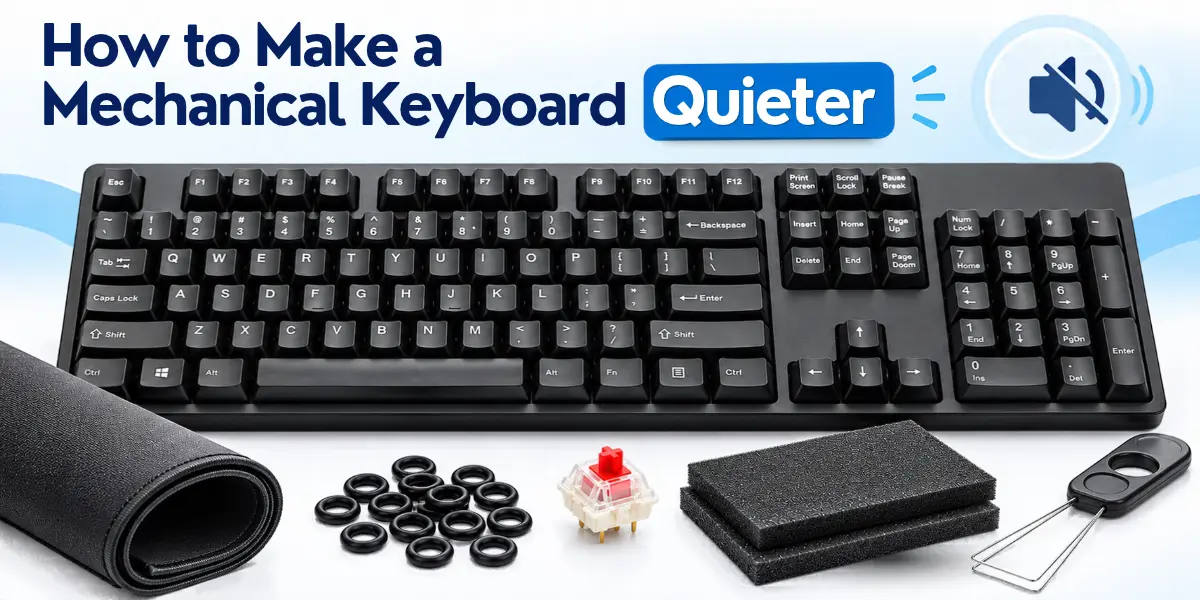
Why Is Your Mechanical Keyboard So Loud?
Mechanical keyboard noise can come from several sources, not just the switches. Understanding these sounds helps you find the source of the noise. You can then choose the right fix.
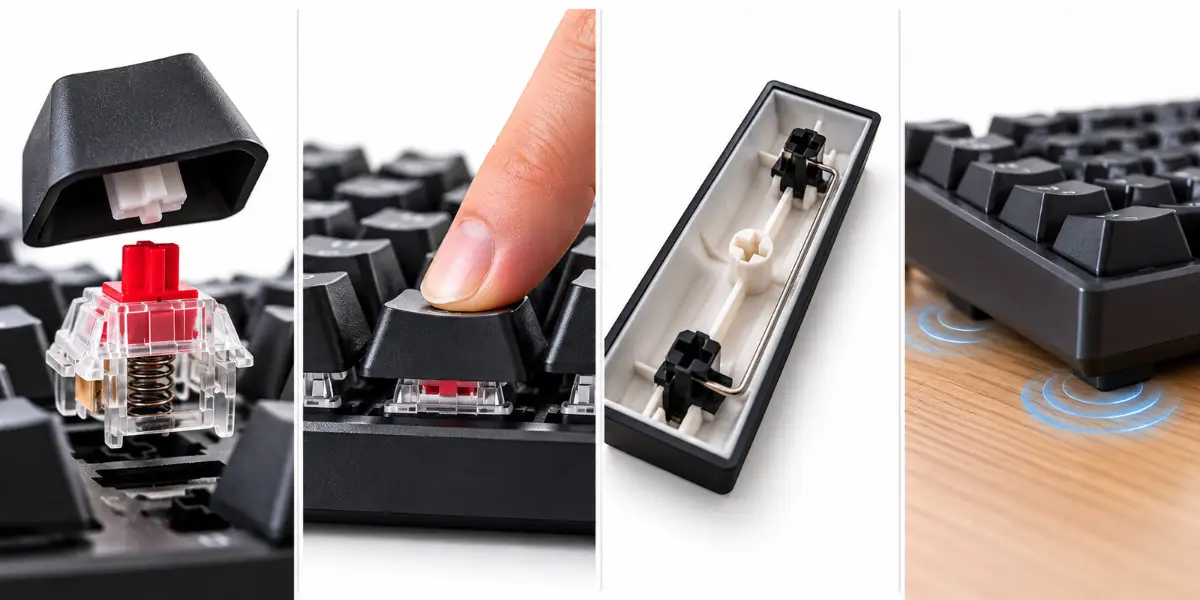
Switches and Built-In Clicking Sounds
The switches beneath your keycaps play a major role in how your keyboard sounds. Different switch types have different sounds and typing feels.
- Clicky switches: These switches make a noticeable clicking sound. Blue switches are a common example.
- Tactile switches: These switches have a small bump that you can feel while pressing a key. They do not always produce a loud click.
- Linear switches: These switches move smoothly without a tactile bump. However, they are not automatically silent. You may still hear the key moving and hitting the end of its travel.
Traditional clicky switches usually produce more noticeable clicking than compatible silent switches.
Bottom-Out and Top-Out Noise
A key can make noise when you press it down or when it returns to its resting position. These sounds often come from the impact of moving parts rather than a built-in clicking mechanism.
- Bottom-out noise: This sound occurs when you press a key all the way down, and it reaches the end of its travel.
- Top-out noise: This sound occurs when a key returns to its resting position after you release it.
Both sounds can add to typing noise. Forceful typing may make these impacts more noticeable. The amount of noise also depends on the switch design, key travel, and keyboard construction.
Stabilizer Rattle and Spring Ping
Sometimes, a few keys sound much louder than the rest of your keyboard. If your Spacebar, Enter, or Shift key rattles, the sound may come from its stabilizer rather than the switch alone.
Stabilizers support longer keys and help them move evenly when you press them. Loose parts or poor alignment can cause a rattling sound as these keys move.
Another possible noise is spring ping. It sounds like a light metallic ringing after you press or release a key. This sound can come from vibrations within a switch’s spring. It may be more noticeable on certain keys than on others.
Case Resonance and Desk Vibration
Your keyboard’s case and the surface beneath it can affect how typing sounds travel. This is why two keyboards with similar switches may sound different.
Case resonance occurs when vibrations within the keyboard’s case make certain sounds more noticeable. A hollow case may produce a deeper or more echo-like sound. A deeper sound describes its tone, not necessarily its volume.
Desk vibration occurs when typing vibrations travel from the keyboard into the desk. A hard desk surface may transmit these vibrations and make the sound more noticeable.
How to Make a Mechanical Keyboard Quieter
You do not always need a new keyboard to reduce typing noise. Start with simple, low-risk methods before trying advanced modifications. The right fix depends on what is making your keyboard noisy.
Start with lighter typing or a desk mat because these fixes are easy to try. If the noise comes from clicky switches, compatible silent switches may make a bigger difference.
Let’s start to find the likely cause of your keyboard noise first:
| What You Hear | Likely Cause | What to Try First |
| Loud clicks on every key | Clicky switches | Consider compatible silent switches |
| Hard clacks when pressing keys | Bottom-out impact | Try lighter typing or compatible O-rings |
| Rattle from the Spacebar | Stabilizer noise | Check stabilizer fit and movement |
| Hollow or echo-like sound | Case resonance | Consider compatible case foam |
| Desk seems to vibrate | Desk vibration | Try a desk mat |
These are likely causes, not guaranteed diagnoses. A sound can have more than one source.
Reduce Typing Force
Typing with a lighter touch may reduce noise from hard key impacts. Keep your fingers relaxed as you type.
- Use less force: Press each key only as hard as needed to register the keystroke.
- Avoid hard impacts: Pressing keys all the way down with too much force can create extra impact noise.
Lighter typing may reduce the noise made when keys hit the bottom of their travel, but it will not remove the built-in click of clicky switches. The results depend on your typing style and switch design.
Difficulty: Easy | Tools: None
Try typing more gently before buying accessories. This simple change may reduce impact noise without costing anything.
Use a Desk Mat
A desk mat is an easy way to try reducing vibrations without opening your keyboard.
- Choose a suitable material: Rubber and padded fabric mats can help absorb some vibrations.
- Place your keyboard on the mat: Make sure it sits flat and remains stable while you type.
- Check your desk: A firm, stable surface can help prevent unwanted movement.
A desk mat may reduce desk vibration and make some sounds less noticeable. However, it cannot eliminate clicking or other noise generated inside the switches. Its effect depends on your keyboard, desk, and mat.
Difficulty: Easy | Tools: Desk mat
Try a desk mat before attempting internal modifications. Choose one that fits your keyboard and leaves enough room for comfortable typing.
Install O-Rings on Compatible Keycaps
O-rings are small rubber rings that fit around the stems under compatible keycaps. They cushion the impact when a keycap reaches the bottom of its travel, which may help soften bottom-out noise.
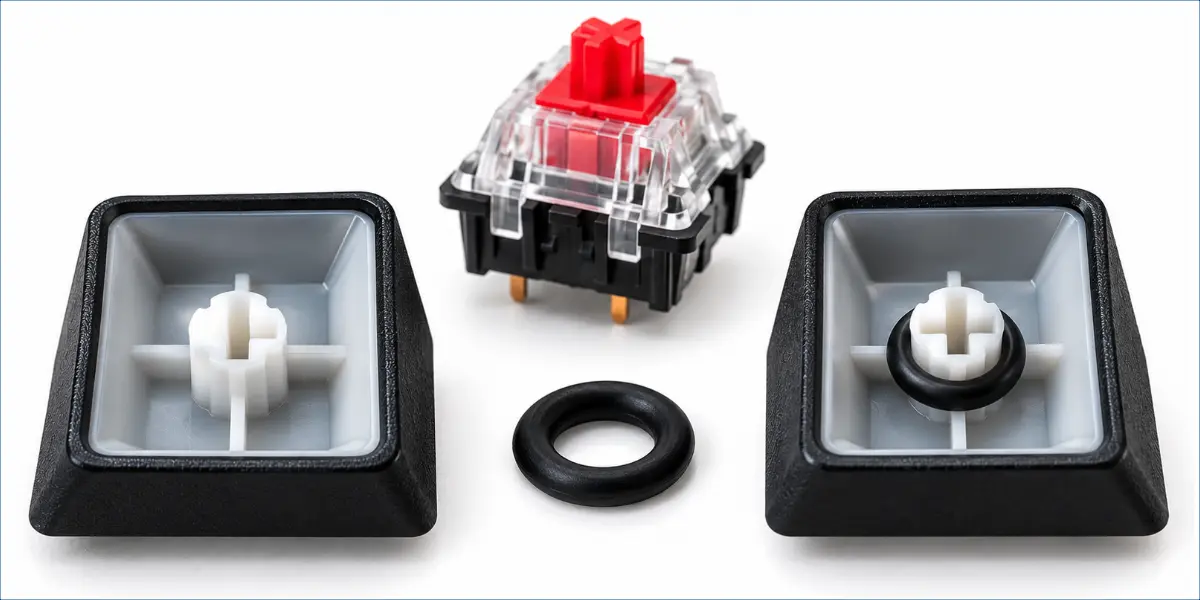
Before installing O-rings, consider these points:
- Check compatibility: Make sure the O-rings fit your keycap stems and suit your keyboard’s design.
- Install them carefully: Remove the keycaps, fit the O-rings onto their stems, and replace the keycaps.
- Consider the typing feel: O-rings can reduce key travel and make key presses feel different.
- Understand their limits: O-rings soften bottom-out noise but do not stop built-in switch clicks.
Results vary by keyboard, and some users may not like the changed typing feel.
Difficulty: Easy to moderate | Tools: Compatible O-rings, keycap puller
If you want to keep your current typing feel, try O-rings on a few compatible keys first. Check the difference before installing them across the keyboard.
Fix Noisy Stabilizers
If your Spacebar, Enter, or Shift key rattles more than other keys, its stabilizer may be the cause. This type of noise is called stabilizer rattle.
- Check for loose parts: Look for loose stabilizers, uneven movement, or damaged parts.
- Check the alignment: Make sure the keycap and stabilizer parts fit correctly. Poor alignment can cause rattling or uneven key movement.
- Use suitable lubricant: A compatible lubricant may reduce friction and noise. Apply it carefully, as too much can affect key movement.
- Replace damaged parts: Replace broken or badly worn stabilizers when repair is not practical.
Advanced options include the Band-Aid mod, which adds a soft layer under certain stabilizer mounting points. These are the areas where the stabilizer attaches to the keyboard. The mod may reduce impact noise, but results vary by keyboard.
Some users also adjust stabilizer wires to fix specific problems. These small metal wires help keep longer keys level as they move. Incorrect adjustments can affect key movement, so avoid cutting or trimming the wires as a first step.
Difficulty: Moderate to advanced | Tools: May include a keycap puller, compatible lubricant, and tools for opening the keyboard.
If your keyboard is under warranty, check the manufacturer’s guidance before opening it.
Add Case or Plate Foam
Some mechanical keyboards produce a hollow or echo-like sound when you type. Suitable foam may help reduce this sound, depending on the keyboard’s design.
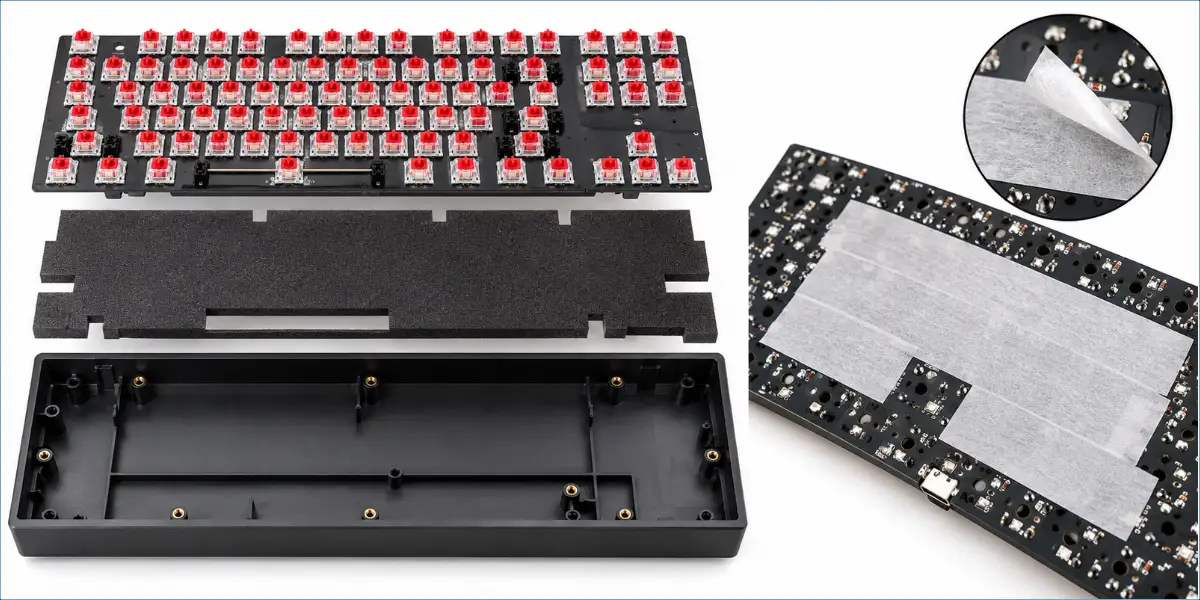
Two common types of keyboard foam are:
- Case foam: Sits inside the keyboard case. It may reduce hollow sounds caused by vibrations inside the case.
- Plate foam: Sits between the plate and the PCB (the keyboard’s main circuit board) in compatible keyboards. It can change the way the keyboard sounds.
Poron and EVA are common foam materials used for sound dampening.
- Check compatibility: Choose foam that fits without putting pressure on internal parts.
- Protect components: Keep foam away from electrical contacts, connectors, and moving parts. Do not block vents or interfere with the battery or its connections.
- Choose the right thickness: Foam that is too thick may prevent the case from closing properly or put pressure on internal parts.
Foam may make your keyboard sound less hollow or change its tone, but it does not always reduce overall volume. It may not remove switch clicks or spring ping.
Difficulty: Moderate | Tools: Compatible foam and tools for opening the keyboard.
Check your keyboard’s internal layout before buying foam. If it already has sound-dampening material, adding more may make little difference.
Try the Tape Mod Carefully
The tape mod involves opening a keyboard and applying suitable tape to the underside of the PCB (the keyboard’s main circuit board). This optional modification can change the keyboard’s sound, but it is not suitable for every design.
- Check compatibility: Follow the manufacturer’s guidance before opening your keyboard.
- Use suitable tape: Choose tape that is safe for your PCB and leaves little residue. If unsure, skip this mod.
- Avoid sensitive areas: Keep tape away from contacts, connectors, ports, reset buttons, and battery contacts.
- Test the keyboard: After reassembly, check that all keys and functions work correctly.
The tape mod may make a keyboard sound deeper or less hollow, but this does not always mean lower volume. Results vary by keyboard design.
Difficulty: Moderate | Tools: Suitable tape and tools for opening the keyboard.
Treat the tape mod as an optional sound-tuning method, not a guaranteed noise fix. Check your warranty before opening the keyboard.
Use Switch Films to Reduce Housing Wobble
Some mechanical switches have movement between their top and bottom housing parts. Switch films may reduce this housing wobble in compatible switches, but they do not guarantee quieter typing.
- Understand switch films: These are thin sheets placed between the top and bottom parts of a switch housing.
- Check compatibility: Switch films do not fit every switch. Choose films made for your switch type.
- Install them carefully: You usually need to open each switch to fit the film. Use a suitable switch opener to avoid damaging the housing.
- Know their limits: Switch films reduce housing wobble, not stem wobble. They may change the sound but do not stop built-in clicks or guarantee quieter typing.
Difficulty: Advanced | Tools: Compatible switch films, a switch opener, and suitable tools for accessing the switches.
Check for housing wobble before buying switch films. They may make little difference if the housing already fits tightly.
Lubricate Compatible Mechanical Switches
If your switches make scratchy sounds, suitable lubricant may help reduce noise caused by friction.
- Choose a compatible lubricant: Use one suited to your switch type and the parts you plan to lubricate.
- Apply it carefully: Too much lubricant can change the typing feel or affect how a switch works.
- Understand the difference: Lubricant can reduce noise caused by friction. Silent switches have built-in dampening parts that soften sound during key movement.
- Check switch access: Hot-swappable keyboards let you remove compatible switches without soldering. You must still open each switch to lubricate it. Soldered keyboards require desoldering tools and suitable skills for switch removal.
Be careful with clicky switches: Lubricating the wrong parts may weaken or change their clicking action. Follow instructions for your specific switch.
Difficulty: Advanced | Tools: Compatible lubricant, switch puller, switch opener, and suitable application tools. Soldering and desoldering tools may be needed for soldered keyboards.
Check your switch manufacturer’s guidance before lubricating. If you are new to this process, practise on a spare compatible switch first.
Replace Loud Switches With Compatible Silent Switches
If your switches are the main source of noise, compatible silent switches may be a better fix than adding foam alone. Silent switches have built-in parts that soften noise during key movement.
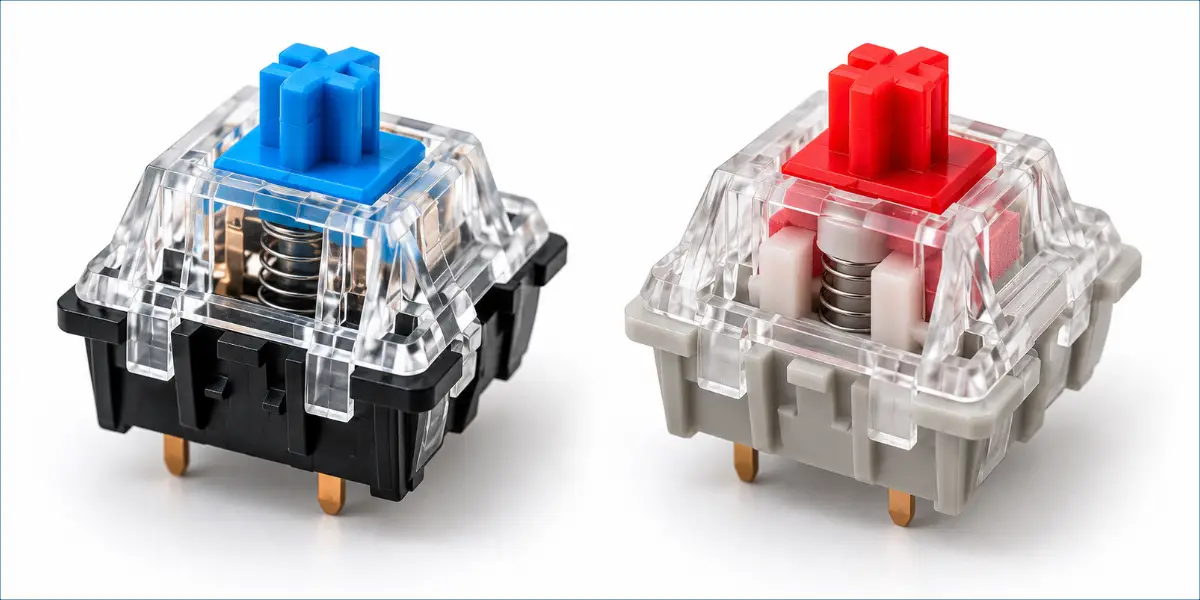
- Choose the right switch type: Silent linear switches provide a smooth key press without a tactile bump. Silent tactile switches have a noticeable bump but are designed to make less noise.
- Check compatibility: Make sure the switch type, pin layout, and mounting style match your keyboard. Not every mechanical switch will fit.
- Check how your keyboard works: Hot-swappable keyboards let you replace compatible switches without soldering. Soldered keyboards need the old switches removed and the new ones soldered in.
- Consider the typing feel: Silent switches may feel different from your current switches. If possible, try one before replacing every switch.
Silent switches can reduce noise from the switches themselves, but they do not make the entire keyboard silent. Keycap impacts, stabilizer rattle, and desk vibrations may still produce sound.
Difficulty: Moderate for compatible hot-swappable keyboards; advanced for soldered keyboards.
Tools: Compatible silent switches and a switch puller. Soldering tools and suitable skills are needed for soldered keyboards.
Check your keyboard’s compatibility before buying new switches. If possible, try one compatible silent switch first to see whether you like its typing feel.
Which Method Is Best for Your Keyboard?
The best method depends on what makes your keyboard noisy. Start with a simple fix before trying advanced changes.
Quick Comparison Table
| Method | Difficulty | Main Benefit | Limitation |
| Reduce typing force | Easy | Reduces hard key impacts | Does not stop built-in switch clicks |
| Use a desk mat | Easy | Reduces some desk vibrations | Does not stop switch noise |
| Install O-rings | Easy to moderate | Softens bottom-out impact | May change key travel and feel |
| Fix noisy stabilizers | Moderate to advanced | Reduces rattling on larger keys | May need adjustments |
| Add case or plate foam | Moderate | Reduces some hollow sounds | Results vary by keyboard |
| Try the tape mod | Moderate | Changes the keyboard’s sound | May not reduce overall volume |
| Install switch films | Advanced | Reduces switch housing wobble | May have little effect |
| Lubricate switches | Advanced | Reduces friction-related noise | Requires suitable lubricant and care |
| Install silent switches | Moderate to advanced | Reduces noise from switches | Compatible switches are required |
So guys, choose a method based on the noise you hear. If your desk vibrates, try a desk mat. If your Spacebar rattles, check its stabilizer. If your switches click loudly, compatible silent switches may help more than foam alone.
When Should You Modify or Replace Your Keyboard?
Not every noisy keyboard needs a major change. Your best option depends on the noise, your budget, and the effort involved.
When Simple Fixes Are Enough
Start with simple fixes when you can identify the source of the noise.
- Try lighter typing or a desk mat to reduce hard impacts and desk vibrations.
- Check the stabilizer if only your Spacebar, Enter, or Shift key rattles.
- Try low-cost fixes before opening your keyboard or buying new parts.
When Advanced Mods Are Worth Considering
Advanced modifications may help when simple fixes do not solve the main noise problem.
- Consider advanced mods if switch friction or internal case resonance remains a problem.
- Check switch compatibility and your keyboard’s design before buying parts.
- Compare the expected noise reduction with the cost and effort.
- Do not open your keyboard if you lack the right tools or skills.
When Silent Switches or a Different Keyboard Make More Sense
A switch change or a new keyboard may be a better choice when the switches cause most of the unwanted noise.
- Consider silent switches if built-in clicking is the main problem.
- Check whether your keyboard supports compatible silent switches before buying them.
- Compare the cost of modifications with the price of a new keyboard.
- Different keycaps can change your keyboard’s sound, but they are not a guaranteed way to reduce overall noise.
- Consider a new keyboard if modifications cost too much or your model does not support compatible switches.
- Choose a quiet keyboard if reducing typing noise is your main goal.
Still unsure if a mechanical keyboard is right for you? Read our guide to mechanical keyboard pros and cons.
Conclusion
Learning how to make a mechanical keyboard quieter starts with finding the source of the noise. It may come from the switches, key impacts, loose stabilizers, or desk vibrations.
Start with a simple fix before trying advanced modifications. If the switches cause most of the noise, compatible silent switches may be a better choice.
You do not always need a new keyboard to enjoy quieter typing. Identify the main problem, choose the right solution, and try the simplest suitable fix first.
FAQ about How to Make Mechanical Keyboard Quieter
Making your mechanical keyboard quieter can raise a few questions. Here are simple answers to help you choose the right solution for your keyboard.
No, most mechanical keyboards cannot become completely silent. Switches, key impacts, stabilizers, and desk vibrations can still make some noise. However, the right changes can make your keyboard much quieter.
Yes, you can reduce keyboard noise without replacing the switches. Try lighter typing, a desk mat, compatible O-rings, or suitable sound-dampening foam. Choose a fix that suits your keyboard and the source of the noise.
Yes, O-rings can soften the sound when a keycap hits the bottom of its travel. However, they do not remove the built-in clicks of clicky switches. They may also reduce key travel and change the typing feel.
Your Spacebar may sound loud because of stabilizer rattle, key impacts, or switch noise. Check if the key moves evenly and the stabilizer parts fit correctly. If the noise continues, the stabilizer may need careful adjustment or repair.
Foam can reduce some hollow or echo-like sounds inside a mechanical keyboard. However, it may change how the keyboard sounds without making it much quieter. The results depend on your keyboard’s design and the type of foam.
Silent switches are usually the best choice when you want less switch noise. Blue switches are typically clicky and produce noticeable clicks. Red switches are usually linear, but they are not automatically silent. Silent switches have special parts inside that help reduce noise.
Use a lighter touch and avoid hitting the keys harder than needed. Keep your fingers relaxed and press each key only as hard as necessary. This may reduce typing noise, but it will not remove the built-in clicks of clicky switches.



- Be Respectful
- Stay Relevant
- Stay Positive
- True Feedback
- Encourage Discussion
- Avoid Spamming
- No Fake News
- Don't Copy-Paste
- No Personal Attacks
- Be Respectful
- Stay Relevant
- Stay Positive
- True Feedback
- Encourage Discussion
- Avoid Spamming
- No Fake News
- Don't Copy-Paste
- No Personal Attacks
