Uses of Function Keys in Keyboard: F1 to F12
Published: 13 Nov 2026
Many computer users see the F1 to F12 keys on their keyboards but do not know what they do. Understanding the uses of function keys in keyboard can make everyday computer tasks easier.
Many standard computer keyboards have 12 function keys, also called F keys, labeled F1 to F12. You can find these keys in the top row of the keyboard. They perform quick actions, such as opening Help, refreshing webpages, and checking spelling.
However, what each key does may change depending on your computer, the program you use, and your keyboard settings.
In my years of working with computer guides and troubleshooting, I have learned how useful these keys can be. In this guide, I will explain the purpose of each function key with simple examples.
What Are the Uses of Function Keys in Keyboard?
The function keys on a keyboard help users perform common tasks quickly in different programs. Their actions depend on the application, operating system, and keyboard settings.
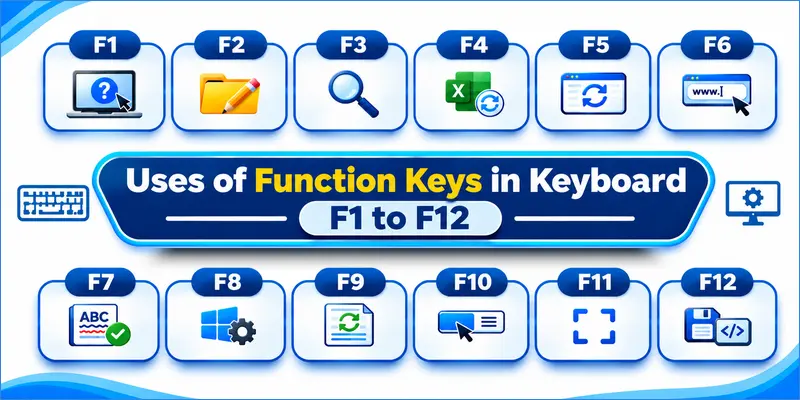
Here is a quick overview of the common uses of F1 to F12 function keys:
| Function Key | Common Use |
| F1 | Opens the Help Menu |
| F2 | Renames Files and Folders |
| F3 | Opens the Search Feature |
| F4 | Performs Application-Specific Actions |
| F5 | Refreshes a Webpage or Window |
| F6 | Moves Between Screen Elements |
| F7 | Checks Spelling and Grammar |
| F8 | Opens Startup Options |
| F9 | Updates Fields |
| F10 | Opens the Menu Bar |
| F11 | Opens Full-Screen Mode |
| F12 | Opens Save As and Developer Tools |
These are common uses, not fixed functions for every computer. Some keys perform different actions in different programs. For example, Alt + F4 closes the active window in Windows, while F4 alone has different uses in supported programs.
Detailed Uses of F1 to F12 Function Keys
Each function key has a different role on a computer keyboard. These keys help users perform tasks in Windows, web browsers, and other applications. However, some functions depend on the software and keyboard settings.
Let’s look at each key with simple explanations and practical examples.
F1 Key – Opens the Help Menu
The F1 key often opens the Help section in programs that use this key. It helps users find instructions when they need guidance about a program.

For example, you can use the F1 key to:
- Open the Help feature in a supported program, such as Microsoft Word.
- Find instructions for using application features and completing tasks.
However, its function may vary depending on the application.
F2 Key – Renames Files and Folders
The F2 key is commonly used to rename selected files and folders in Windows File Explorer. You can quickly change a file or folder name without opening its properties.
For example, you can use the F2 key to:
- Rename a selected file or folder, such as changing Notes to Computer Notes.
- Edit the contents of a selected cell in Microsoft Excel.
F3 Key – Opens the Search Feature
The F3 key often opens the Search feature in some programs. It helps users find files, folders, or specific text without searching through everything manually.
For example, you can use the F3 key to:
- Search for files and folders in Windows File Explorer.
- Find specific text or information in supported applications.
The F3 key may perform different search actions depending on the application you are using.
F4 Key – Performs Application-Specific Actions
The F4 key performs different actions in different programs. In Microsoft Excel, it can repeat the last action. While working with an Excel formula, it can also change how a cell address works. It can also work with other keys to perform useful tasks.
For example, you can use the F4 key to:
- Repeat the last action in Microsoft Excel when the action can be repeated.
- Change how a cell address works in an Excel formula.
- Close the active window by pressing Alt + F4 in Windows.
- Show the address bar list in Windows File Explorer.
Remember, Alt + F4 is a keyboard shortcut combination, not the standalone function of the F4 key.
F5 Key – Refreshes a Webpage or Window
The F5 key is commonly used to refresh a webpage in many web browsers. It reloads the current page and can help display updated content. For example, if a webpage does not show the latest information, you can press F5 to reload it.

You can use the F5 key to:
- Refresh the current webpage in supported web browsers to load updated content.
- Refresh the current File Explorer window to update its displayed items.
The exact function of the F5 key may vary depending on the application you are using.
F6 Key – Moves Between Screen Elements
The F6 key helps users move between different parts of a program without using a mouse. In many web browsers, pressing F6 moves the focus between different browser areas, such as the address bar and toolbars. You can then type a website address or search term.
You can use the F6 key to:
- Move between browser areas, such as the address bar and toolbars.
- Navigate between different parts of a program without using a mouse.
The exact function of the F6 key may vary depending on the application and keyboard settings.
F7 Key – Checks Spelling and Grammar
The F7 key often opens spelling and grammar tools in programs such as Microsoft Word. These tools help you find and correct mistakes in your document. In some web browsers, F7 also turns on Caret Browsing, which lets you move through webpage text using the keyboard.
You can use the F7 key to:
- Open the spelling and grammar checker in Microsoft Word.
- Review suggested corrections and fix mistakes in your document.
- Turn on Caret Browsing in supported web browsers.
However, not all programs use the F7 key for spelling and grammar checks. Its function depends on the application.
F8 Key – Opens Startup Options
The F8 key was commonly used to open advanced startup options in older versions of Microsoft Windows. These options appeared when the computer started. Users could select Safe Mode to start Windows with only the basic features needed to fix problems.
You could use the F8 key in older Windows versions to:
- Open the Advanced Boot Options menu when the computer starts.
- Start Windows in Safe Mode to troubleshoot system problems.
- Access other startup and recovery options available in older Windows versions.
However, F8 is not the standard way to open startup options in Windows 10 and Windows 11. These versions use the Windows Recovery Environment to access startup and recovery options.
F9 Key – Updates Fields
The F9 key can update some information in programs that support it. In Microsoft Word, it can update automatic information in a document, such as page numbers and table of contents entries. This helps keep the information up to date.
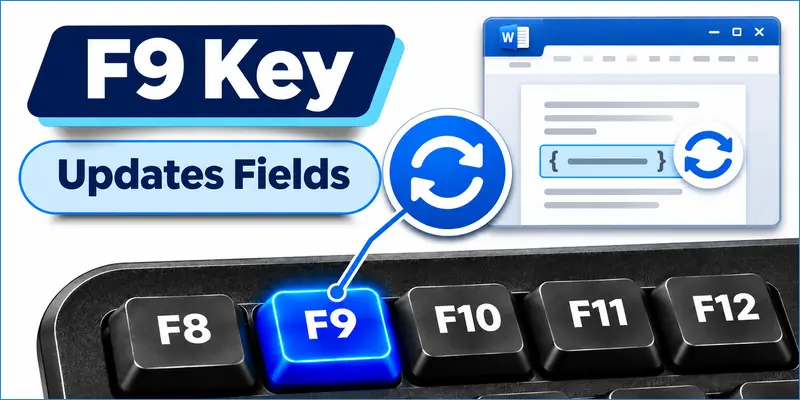
You can use the F9 key to:
- Update automatic information in a Microsoft Word document.
- Update table of contents entries and page numbers.
- Recalculate formulas in Microsoft Excel.
However, the F9 key does not have one universal function in Windows. Its action depends on the application and the feature you are using.
F10 Key – Opens the Menu Bar
The F10 key often opens the menu bar in some programs. A menu bar contains options such as File, Edit, View, and Help. You can use the arrow keys to move through these options without a mouse.
You can use the F10 key to:
- Open the menu bar in supported programs.
- Access options such as File, Edit, View, and Help.
- Use the arrow keys to move between menus and explore their options.
- Press Shift + F10 to open a menu of options for a selected item.
The F10 key and its combinations may work differently depending on the application and operating system.
F11 Key – Opens Full-Screen Mode
The F11 key is commonly used to switch supported web browsers to full-screen mode. It hides browser elements such as tabs and the address bar, giving you more space to view a webpage. In some programs, such as Microsoft Word, F11 performs a different action.
You can use the F11 key to:
- Enter full-screen mode in supported web browsers.
- Press F11 again to return to the normal browser view.
- Move to the next field in Microsoft Word.
However, the F11 key does not work the same way in every application. Its function depends on the software and keyboard settings.
F12 Key – Opens Save As and Developer Tools
The F12 key performs different actions in different programs. In supported Microsoft Office applications, such as Microsoft Word, pressing F12 opens the Save As dialog. This lets you save a document with a new name or choose a different location.
In many web browsers, F12 opens Developer Tools. These tools help developers check how a website works and find problems.

You can use the F12 key to:
- Save documents with a new name or location.
- Open Developer Tools in supported web browsers.
However, the F12 key does not have one fixed function on every computer. Its action depends on the application and keyboard settings.
What Is the Fn Key on a Keyboard?
The Fn key is found on many laptop keyboards. It works with the F1–F12 keys to access extra laptop functions, such as screen brightness, volume, and music or video playback. These key combinations are used to control different laptop features.
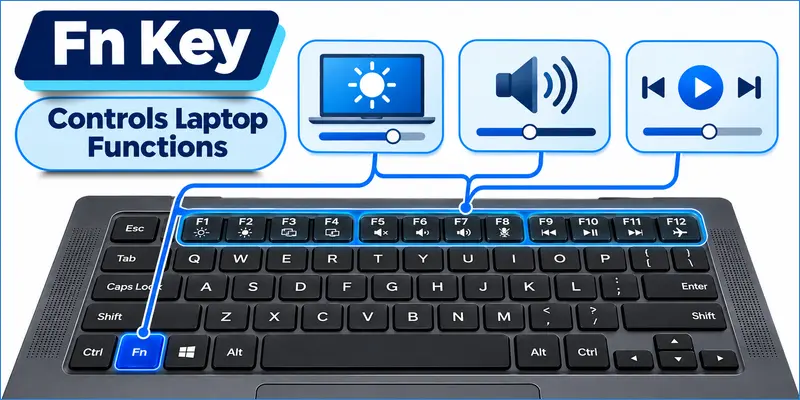
These keys can do two types of tasks: their normal tasks and extra laptop tasks. For example, pressing Fn + F5 may change screen brightness instead of refreshing a webpage. The exact action depends on the laptop model.
Fn Lock changes whether the F1–F12 keys perform their normal functions or extra laptop tasks. Most desktop keyboards let you use these keys without pressing Fn. However, some keyboards may have extra functions.
In my experience, many laptop users press the F keys without checking whether Fn Lock is enabled. Checking this setting can often help solve the problem.
How to Change Function Key Settings on a Laptop
You can change how the F1–F12 function keys work on many laptops. Here are three common methods to switch between standard and secondary functions.
Method 1: Use Fn Lock
- Look for the Fn Lock symbol on your keyboard.
- Press the supported key combination to switch between standard and secondary functions.
Method 2: Check Keyboard Settings
- Open your laptop’s keyboard settings or manufacturer software.
- Look for an option to change function key behavior, if available.
Method 3: Change BIOS or UEFI Settings
BIOS or UEFI is a special setup menu that lets you change basic computer settings before Windows starts.
- Restart your laptop and press the BIOS/UEFI setup key shown by your laptop manufacturer during startup. Common keys include F2, F10, Delete, and Esc.
- Look for options such as Function Key Behavior or Action Keys Mode.
- Select your preferred setting and save the changes before exiting.
Note: Available options, menu names, and key combinations vary by laptop manufacturer and model. Check your laptop’s user manual for the correct instructions.
Common Problems With Function Keys and How to Fix Them
Function keys may not always work as expected. Keyboard settings and computer software can change how these keys work. Here are some common problems and simple ways to fix them.
Function Keys Are Not Working
Sometimes, the F1–F12 keys may stop responding or perform no action. This can happen because of a loose keyboard connection, incorrect settings, or a keyboard problem.
Try these fixes:
- Check the keyboard connection if you use an external keyboard.
- Try the function keys in another program that uses them.
- Restart your computer to check whether a temporary problem is causing the issue.
- Check whether your keyboard software needs an update or the keyboard has a physical problem.
Function Keys Control Brightness or Volume
On many laptops, the F1–F12 keys also control secondary functions, such as screen brightness and volume. This behavior may depend on Fn Lock and your laptop’s keyboard settings.
Try these fixes:
- First, check whether Fn Lock is enabled on your laptop.
- Try pressing the Fn key with the required function key to activate its secondary function, if supported.
- Review your laptop’s keyboard settings to change the default function key behavior.
Fn Lock Is Not Working
Fn Lock may not work if your laptop does not have this feature or if you press the wrong keys. On some laptops, you can change this setting using the laptop company’s software or BIOS/UEFI settings.
Try these fixes:
- Check whether your laptop keyboard supports Fn Lock.
- Use the key combination recommended by your laptop manufacturer.
- Check the keyboard settings or user manual for the correct instructions.
Function Keys Work Differently in Different Applications
The same function key can perform different actions in different programs. For example, F5 may refresh a webpage in a browser, while another application may assign it a different action.
Try these fixes:
- Check the application’s keyboard shortcut settings.
- Read the software’s Help section to learn what each function key does.
- Reset custom shortcuts if the application offers that option.
Conclusion
Now that you understand how function keys work, let’s put them to good use. From opening Help with F1 to renaming files with F2 and refreshing webpages with F5, these keys make common computer tasks easier. These are some of the main uses of function keys in keyboard.
Remember that their actions may vary between applications and keyboard settings. On laptops, the Fn key can also control features such as screen brightness and volume.
My recommendation is to start with the function keys you use most often. Practice them in your daily work to save time and complete computer tasks more easily.
Frequently Asked Questions About Function Keys
Here are some common questions about keyboard function keys, their uses, and keyboard settings. These answers will help you understand how F1–F12 and the Fn key work on different computers.
A standard computer keyboard usually has 12 function keys, labeled F1 through F12. They appear in the top row and help users perform different tasks, such as opening Help, renaming files, refreshing webpages, and checking spelling. Their functions may vary between applications and keyboard settings.
The Fn key lets you access extra functions on many laptop keyboards. Press it with a compatible F1–F12 key to control features such as screen brightness and volume.
Yes. On many keyboards, you can use F1–F12 without pressing the Fn key. If your laptop uses secondary functions by default, change the Fn Lock or function key settings.
No, function keys do not work the same way on every computer. Their actions can change depending on the operating system, keyboard settings, and application. For example, F12 can open the Save As dialog in supported versions of Microsoft Word, while it can open Developer Tools in many web browsers.
Function keys are the F1–F12 keys on a keyboard. The Fn key works with other keys to access extra functions, especially on laptops.
Yes, some keyboards let you change what their function keys do using keyboard software or settings. You may be able to assign different actions or shortcuts to these keys. The available options depend on your keyboard model and software.
No, function keys and keyboard shortcuts are not the same. Function keys are individual keys, such as F1, F2, and F5, while keyboard shortcuts often combine two or more keys to perform an action. For example, Alt + F4 is a keyboard shortcut that closes the active window in Windows.




- Be Respectful
- Stay Relevant
- Stay Positive
- True Feedback
- Encourage Discussion
- Avoid Spamming
- No Fake News
- Don't Copy-Paste
- No Personal Attacks
- Be Respectful
- Stay Relevant
- Stay Positive
- True Feedback
- Encourage Discussion
- Avoid Spamming
- No Fake News
- Don't Copy-Paste
- No Personal Attacks
