Functions of Computer Keyboard: 10 Main Functions Explained
Published: 6 Nov 2026
Have you ever used a keyboard to type a school assignment, fill out an online form, or correct a typing mistake? A computer keyboard helps you do all these tasks and much more.
You can use its keys to enter letters, numbers, and symbols, edit text, move through documents, and control applications. Each key has a specific role, although some keys work differently depending on the application.
In this guide, I’ll explain the 10 main functions of computer keyboard with simple explanations and practical examples.
What Are the Functions of a Keyboard in Computer?
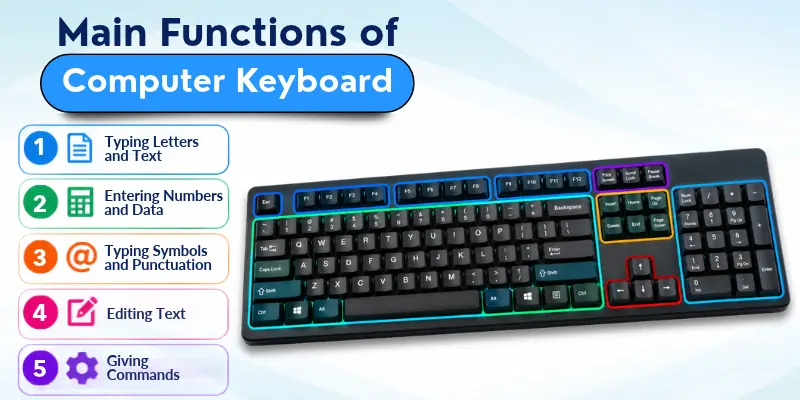
A computer keyboard is an input device that sends information to a computer when you press its keys. Depending on the key and application, it can help you enter text, move the cursor, and perform different actions.
10 Main Functions of Computer Keyboard
A computer keyboard supports many everyday tasks. Here are 10 main functions, with simple examples of how each one works.
A quick list of computer keyboard functions.
- Typing Letters and Text
- Entering Numbers and Data
- Typing Symbols and Punctuation
- Giving Commands
- Editing Text
- Moving the Cursor
- Navigating Menus and Controls
- Selecting Text and Items
- Controlling Software Functions
- Using the Numeric Keypad
Let’s look at each keyboard function one by one with practical examples.
Typing Letters and Text
Typing is one of the basic functions of a computer keyboard. The alphabet keys (A–Z) help you write words, sentences, and paragraphs. The Spacebar adds spaces between words, while the Caps Lock key lets you type capital letters.
You can use these keys to:
- Write school assignments and documents.
- Type words into search boxes.
- Fill out online forms.
Example: You can type a paragraph in a word processor using the alphabet keys.
Entering Numbers and Data
A computer keyboard lets you enter numbers for many everyday tasks. You can use number keys to add information to spreadsheets, online forms, and other number fields.
You can use number keys to:
- Enter students’ marks in a spreadsheet.
- Add prices or quantities to a table.
- Enter your age or a date in an online form.
Example: A shop owner can enter product prices into a spreadsheet to keep track of them.
Typing Symbols and Punctuation
A computer keyboard lets you add punctuation marks and special characters to your text. These marks help you write clear sentences. On many keyboard layouts, you can use the Shift key to type alternate symbols, such as @ and !.
You can use punctuation and symbol keys to:
- Add commas, full stops, and question marks to sentences.
- Type quotation marks, brackets, and other special characters.
Example: You can type “Where is my computer?” in a document using the letter keys and the question mark key.
Giving Commands
A computer keyboard lets you control an application through certain keys and keyboard commands. These keys can help you confirm choices, cancel actions, or perform tasks. Their actions depend on the application and what you are doing.
You can use these keys to:
- Enter: Confirm a choice or submit information when supported.
- Esc: Cancel an action or close a menu or dialog box when supported.
- Key combinations: Press two or more keys together to perform actions in supported applications.
Example: When a dialog box asks you to confirm an action, pressing Enter may select the highlighted option.
Editing Text
A computer keyboard helps you correct typing mistakes and change existing text. The Backspace and Delete keys remove unwanted characters, but they work differently depending on where the cursor is placed.
You can use these keys to:
- Backspace: Remove the character to the left of the cursor.
- Delete: Remove the character to the right of the cursor.
- Correct typing mistakes by removing unwanted characters and typing the right ones.
Example: If you type “cat” instead of “car,” place the cursor after “t.” Press Backspace to remove “t,” then type “r.”
Moving the Cursor
A computer keyboard helps you move the text cursor to different places in a document. Some keys can also move the selection or focus between items on the screen. The text cursor, also called the insertion point, shows where the next character will appear.
You can use these keys to move through text:
- Arrow keys (also called cursor keys): Move the cursor up, down, left, or right through text.
- Home: Move to the beginning of the current line in many text editors.
- End: Move to the end of the current line in many text editors.
Example: You can use the arrow keys to place the cursor at a specific point in a sentence before editing it.
Navigating Menus and Controls
A computer keyboard helps you move between different parts of an application without using a mouse. You can use navigation keys on a keyboard to move through menus, buttons, form fields, and other controls. Their behavior depends on the application.
In many applications, Page Up and Page Down help you move through a document one screen at a time.
You can use these keys to:
- Tab: Move to the next available field or control, such as the email field in an online form.
- Arrow keys: Move through menu options or lists when supported by the application.
Example: While filling out an online form, press Tab to move from the name field to the email field without using your mouse.
Selecting Text and Items
A computer keyboard lets you select text before editing or replacing it. You can select a word, a sentence, or part of a document instead of retyping the whole passage.
You can use these keys to select text:
- Shift + Arrow keys: Extend the text selection one character or line at a time.
- Shift + Home or End: Select text from the cursor to the beginning or end of the current line in many text editors.
Example: You can select a sentence in Google Docs and type new text to replace it.
Controlling Software Functions
Function keys help you perform specific actions in computer applications. Most standard keyboards have keys labeled F1 to F12. Their functions vary by software, keyboard settings, and device.
In supported applications, function keys can also work with modifier keys, such as Ctrl or Alt, to perform additional actions.
You can use function keys to:
- Open Help or perform other assigned actions.
- Perform application-specific actions using supported function-key combinations.
- Access extra laptop features using the Fn key, where supported.
Example: Pressing F1 may open the Help section in an application that uses this key for Help.
Using the Numeric Keypad
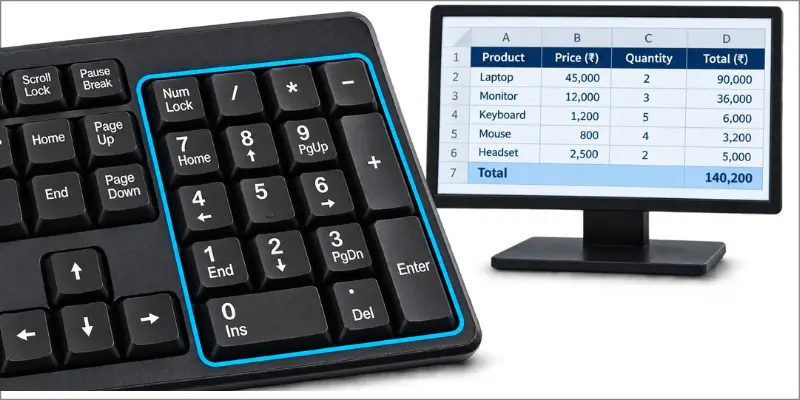
A numeric keypad is a separate group of number keys found on many full-size keyboards. Its layout makes it convenient to enter numbers quickly, especially when working with large amounts of data.
You can use the numeric keypad to:
- Enter numbers quickly: Use the number keys to enter data in spreadsheets and other applications.
- Perform calculations: Use the plus (+), minus (−), multiplication (*) and division (/) keys in supported applications.
- Control number entry: Use Num Lock to enable or disable numeric input on many keyboards.
Example: When entering many prices into a spreadsheet, you can use the numeric keypad to enter numbers efficiently. Some laptops and compact keyboards do not have a separate numeric keypad.
Main Groups of Computer Keyboard Keys
A computer keyboard has different groups of keys, and each group serves a specific purpose. The arrangement and labels of keys can vary across keyboard layouts and devices.
Understanding computer keyboard keys and their functions helps you learn how to enter information, edit text, and control applications.
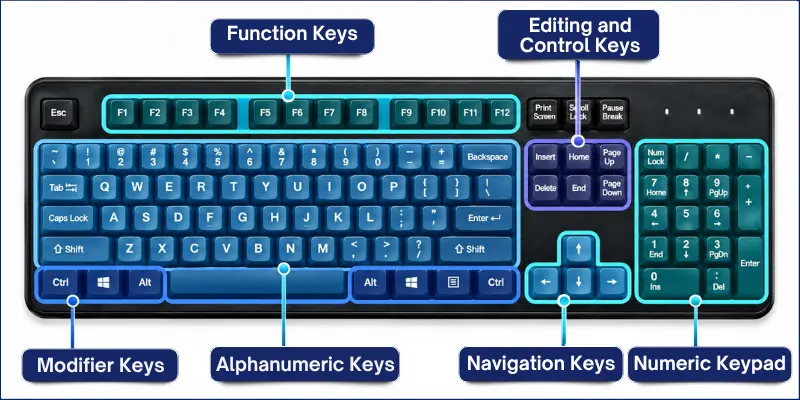
| Key Group | Examples | Main Function |
| Alphanumeric keys | A–Z, 0–9 | Entering letters and numbers |
| Numeric keypad | Number keys, arithmetic operators | Entering numbers and performing calculations |
| Function keys | F1–F12 | Performing software-dependent actions |
| Modifier keys | Shift, Ctrl, Alt | Modifying or combining key actions |
| Navigation keys | Arrow keys, Home, End | Moving through text and interface controls |
| Editing and control keys | Backspace, Delete, Enter, Esc, Tab | Editing text and performing supported actions |
Some full-size keyboards also include special keys such as Print Screen, Scroll Lock, and Pause/Break. Print Screen can capture screenshots, while Scroll Lock and Pause/Break have more limited uses that depend on the application and device.
Some keys can perform different tasks depending on the application and situation. For example, Enter can start a new line in a text editor or confirm an action in a dialog box.
Difference Between Keyboard Functions and Keyboard Uses
Keyboard functions describe what a keyboard or its keys do. Keyboard uses describe the tasks people perform with a keyboard.
For example, entering text is a keyboard function, while writing a school assignment is a practical use.
Conclusion
Understanding the functions of computer keyboard helps you use its keys with confidence. From typing text and entering numbers to editing content and navigating menus, each key group supports different tasks.
My recommendation is to start with the keys you use most often. Practice using them while writing documents, filling out forms, or working in a spreadsheet. Regular practice can help you use your keyboard more confidently and efficiently.
Frequently Asked Questions About Keyboard Functions
Here are some common questions about computer keyboard functions. These answers explain what a keyboard does and how its keys work.
The primary function of a computer keyboard is to enter information into a computer. You can use it to type letters, numbers, and symbols, edit text, and control applications.
Five major functions of a computer keyboard are typing text, entering numbers, typing symbols, editing text, and navigating through documents or menus. Keyboards can also help users perform commands and control software.
The 12 function keys are F1 through F12. They perform different tasks depending on the application, keyboard settings, and device. For example, F1 often opens Help in supported applications.
No, different keyboard keys perform different tasks. Letter keys enter text, arrow keys help move through text or menus, and modifier keys such as Shift and Ctrl change or combine key actions. Some keys have different functions in different applications.
No, computer keyboards can have different layouts and key arrangements. Full-size keyboards often include a separate numeric keypad, while many laptops and compact keyboards do not. Some keyboards also include extra keys for specific functions.



- Be Respectful
- Stay Relevant
- Stay Positive
- True Feedback
- Encourage Discussion
- Avoid Spamming
- No Fake News
- Don't Copy-Paste
- No Personal Attacks
- Be Respectful
- Stay Relevant
- Stay Positive
- True Feedback
- Encourage Discussion
- Avoid Spamming
- No Fake News
- Don't Copy-Paste
- No Personal Attacks
