How to Use a Virtual Keyboard on a Computer
Published: 17 Sep 2026
If your physical keyboard stops working, typing on a computer can become a real problem. You may need to enter a password, search the web, or write a document. In such cases, knowing how to use virtual keyboard on computer can help you keep working.
In my years of helping people solve common computer problems, I have often found the On-Screen Keyboard useful when a physical keyboard is not available. Windows has a built-in option that you can control with a mouse or touchscreen.
In this guide, I will show you how to use a virtual keyboard on Windows and Mac. You will also learn how to type with it, use useful features, and fix common problems. If you want to learn what a virtual keyboard is first, read our guide on What Is a Virtual Keyboard?
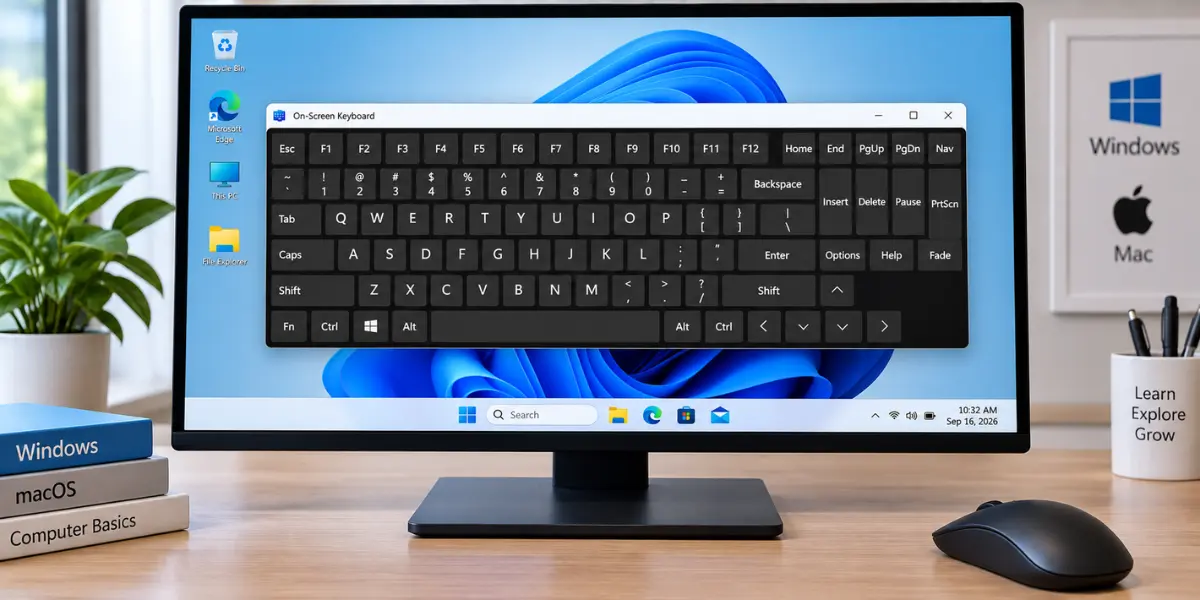
How to a Use Virtual Keyboard on a Computer
A virtual keyboard lets you type on a computer without using a physical keyboard. To use a virtual keyboard on a computer, first open the virtual keyboard or On-Screen Keyboard.
Then follow these simple steps:
- Click or tap inside the text box where you want to type.
- Click or tap the letters, numbers, or symbols on the virtual keyboard.
- Use Space, Enter, Backspace, Shift, and other keys as needed.
- Continue typing until you finish your text.
For example, open Notepad, click inside the blank page, and use the On-Screen Keyboard to type a short sentence. You can control it with a mouse, touchpad, or touchscreen.
How to Open a Virtual Keyboard on Windows
Windows has a built-in On-Screen Keyboard (OSK) that lets you type without a physical keyboard. You can open it in several ways, including a keyboard shortcut, Settings, Windows Search, the Run command, or the sign-in screen.
Open the On-Screen Keyboard With a Keyboard Shortcut
The direct On-Screen Keyboard shortcut is Windows + Ctrl + O.
- Press Windows + Ctrl + O together.
- The On-Screen Keyboard will appear on the screen.
- Click its keys to start typing.
This shortcut is useful when your physical keyboard is working.
Open the On-Screen Keyboard From Settings
You can also open the Windows virtual keyboard from the Settings app. The steps are slightly different in Windows 11 and Windows 10.
Windows 11:
- Open Settings.
- Select Accessibility.
- Select Keyboard.
- Turn on On-Screen Keyboard.
Windows 10:
- Open Settings.
- Select Ease of Access.
- Select Keyboard.
- Turn on Use the On-Screen Keyboard.
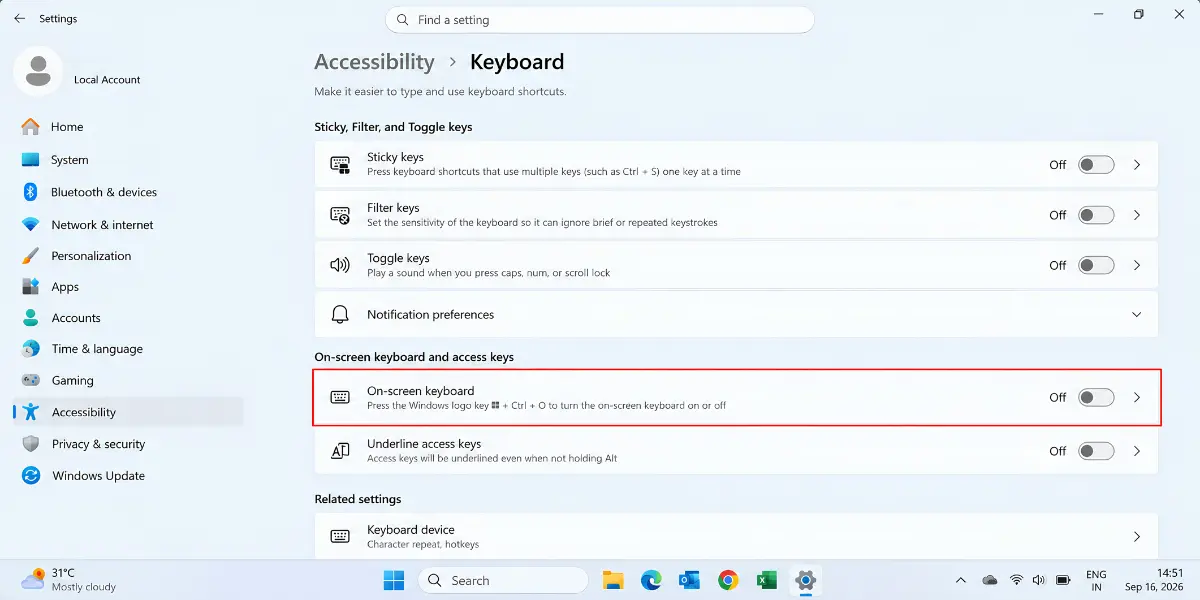
The virtual keyboard will then appear on your screen.
Open the On-Screen Keyboard With Windows Search
Windows Search provides another simple way to find the On-Screen Keyboard.
- Open Windows Search.
- Type On-Screen Keyboard.
- Select the app from the search results.
The keyboard will open, and you can use it with a mouse, touchpad, or touchscreen.
Open the On-Screen Keyboard With the Run Command
You can use the osk command to open the virtual keyboard quickly.
- Press Windows + R to open the Run box.
- Type osk.
- Press Enter.
Windows will open the On-Screen Keyboard. You can then select its keys with your mouse, touchpad, or touchscreen.
Open the On-Screen Keyboard From the Sign-In Screen
If your physical keyboard is not working, you can open the On-Screen Keyboard before signing in to Windows.
- Go to the Windows sign-in screen.
- Select the Accessibility button in the lower-right corner.
- Select On-Screen Keyboard.
- Click the keys to enter your password or PIN.
- Sign in to Windows.
Note: These On-Screen Keyboard methods work on most Windows laptops and desktop computers.
How to Type With a Virtual Keyboard
Once the virtual keyboard is open, you can type much like you would with a physical keyboard. Click or tap inside the text field first, then select the keys you need on the screen.
Type Letters and Numbers
Click a letter on the virtual keyboard to enter it in the text field. You can also click the number keys to enter numbers.
Use Space, Enter, and Backspace
These keys handle common typing tasks:
- Space: Adds a space between words.
- Enter: Starts a new line or confirms an entry, depending on the app.
- Backspace: Deletes the character to the left of the cursor.
Click or tap the required key on the virtual keyboard to use it.
Use Shift and Caps Lock
You can use Shift and Caps Lock to change letter case or enter certain symbols.
- Shift: Click Shift and then select a letter to type it in uppercase. You can also use it with a number or symbol key.
- Caps Lock: Turns uppercase typing on or off.
These keys work much like they do on a physical keyboard.
Type Symbols and Special Characters
The virtual keyboard can also enter common symbols and special characters. Their location can vary with the keyboard layout and language settings.
- @ for email addresses
- # for hashtags or other text
- $ for currency amounts
- % for percentages
If a symbol appears above a number or letter, select Shift and then click that key. This lets you type symbols without a physical keyboard.
How to Use a Virtual Keyboard Without a Physical Keyboard
You can still use your computer when the physical keyboard is unavailable. The Windows On-Screen Keyboard lets you type with a mouse, touchpad, or touchscreen.
Use a Mouse or Touchpad
You can use a virtual keyboard with a mouse by selecting each key on the screen.
- Move the pointer over the key you need.
- Click the key.
- Continue clicking the keys to type.
- Select keys such as Space, Enter, or Backspace when needed.
A touchpad works in the same basic way. Move the pointer with your finger and click the required key. This lets you type without using physical keys.
Use a Touchscreen
If your computer supports touch input, you can enter text directly on the virtual keyboard.
- Tap inside the text field where you want to type.
- Tap each letter, number, or symbol on the keyboard.
- Continue tapping the keys until you finish typing.
This method does not require a mouse or touchpad. It works on computers that support touchscreen input.
When Your Physical Keyboard Is Not Working
A virtual keyboard is useful when your physical keyboard is broken, disconnected, or temporarily unavailable. You can still perform basic typing tasks without physical keys.
For example, you can use it to:
- Enter a Windows PIN or password
- Search the web
- Type in a document
- Fill out an online form
- Enter text in an app
How to Use a Virtual Keyboard on a Mac
Mac computers include built-in tools for on-screen typing. You can use Keyboard Viewer for a simple virtual keyboard or the Accessibility Keyboard when you need to use your Mac without a physical keyboard.
Use Keyboard Viewer on Mac
Keyboard Viewer displays your keyboard layout on the screen. You can click its keys to enter letters, numbers, symbols, and other characters.
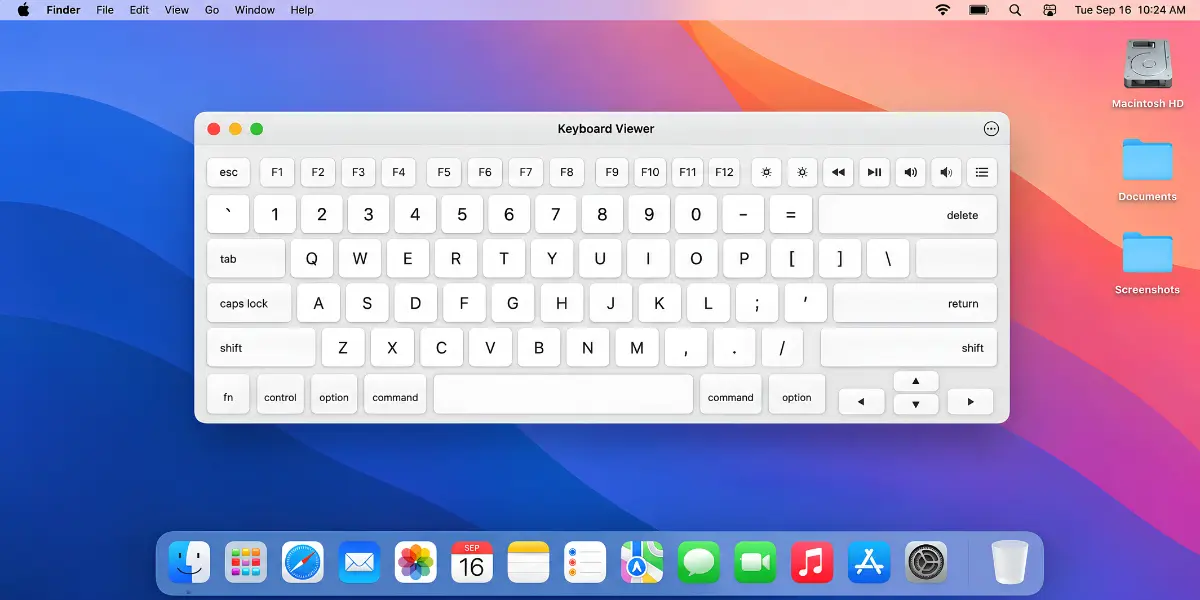
To open Keyboard Viewer on Mac:
- Click the Input menu in the menu bar.
- Select Show Keyboard Viewer.
- Click the keys on the on-screen keyboard to enter text.
If you do not see the Input menu, go to Apple menu > System Settings > Keyboard > Text Input > Edit. Turn on Show Input menu in menu bar, then open Keyboard Viewer from the menu bar.
Use the Accessibility Keyboard on Mac
The Accessibility Keyboard is a full virtual keyboard for Mac. It lets you enter text and use your Mac without a physical keyboard.
To turn it on:
- Open Apple menu > System Settings.
- Select Accessibility.
- Select Keyboard.
- Turn on Accessibility Keyboard.
The keyboard appears on the screen. You can click its keys with a mouse or trackpad to type.
How to Use On-Screen Keyboard Features
After learning the basic typing controls, you can use several On-Screen Keyboard features to make typing easier. Windows provides options such as text prediction, a numeric keypad, hover mode, and scan mode.
Use Text Prediction
Text Prediction suggests words as you type. You can select a suggested word instead of entering every letter.
To turn it on:
- Open the On-Screen Keyboard.
- Select Options.
- Turn on Use Text Prediction.
- Select a suggested word when it appears.
This can make typing faster, especially when entering longer words.
Use the Numeric Keypad
The numeric keypad adds a separate number pad to the On-Screen Keyboard. It is useful when you enter numbers often or prefer a number-pad layout.
- Open the On-Screen Keyboard.
- Select Options.
- Turn on Turn on numeric keypad.
The OSK will expand to show the numeric keypad.
Use Hover Mode
Hover mode lets you select a key without clicking it.
- Move the mouse or another pointing device over a key.
- Keep the pointer there for the set time.
- Windows enters the character automatically.
You can adjust the hover duration in the On-Screen Keyboard options. This can help if clicking keys is difficult.
Use Scan Mode
Scan mode moves through keys or groups of keys on the On-Screen Keyboard. It provides another way to select keys without clicking each one directly.
- Wait for the desired key or group to be highlighted.
- Use the available selection method to choose it.
- Continue until you finish typing.
Scan mode can be useful for people who need an alternative input method.
Make the On-Screen Keyboard Start Automatically
If you use the On-Screen Keyboard often, you may be able to set it to start automatically when you sign in to Windows.
- Open Windows Settings.
- Go to Accessibility settings.
- Look for the On-Screen Keyboard options.
- If your Windows version provides an automatic startup option, enable it.
The exact option and location can vary between Windows versions.
On-Screen Keyboard vs Touch Keyboard
The on-screen keyboard vs touch keyboard difference can be confusing because both let you type without a physical keyboard. However, they are made for different typing needs. For more details about the Touch Keyboard and its available layouts, see Microsoft’s Touch Keyboard guide.
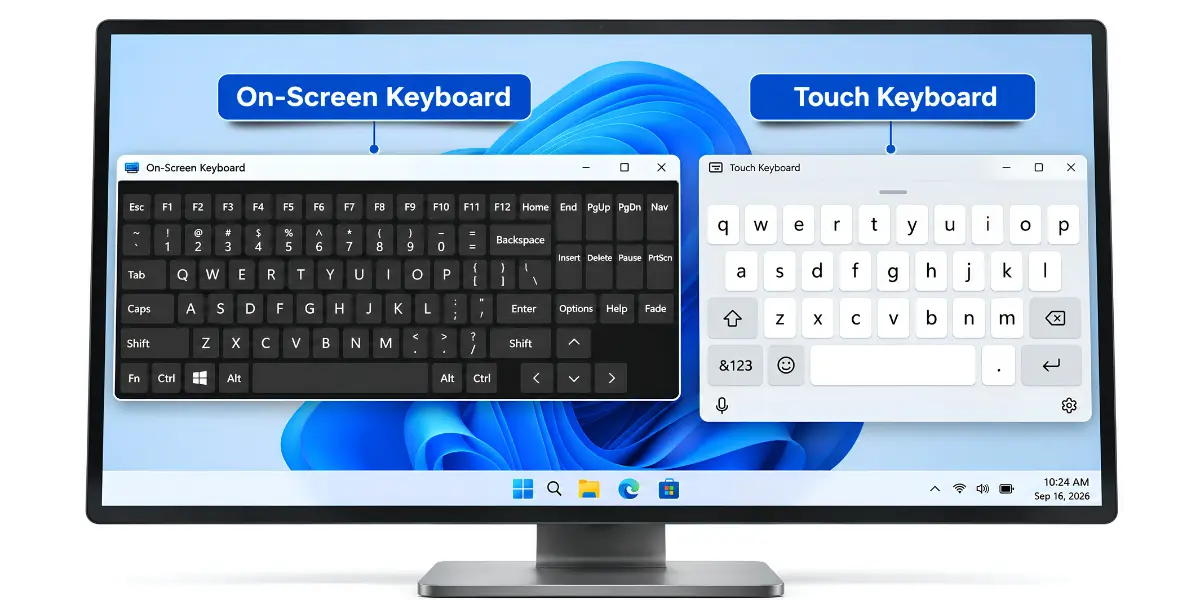
| Feature | On-Screen Keyboard | Touch Keyboard |
| Main purpose | Full on-screen keyboard | Touch-friendly typing |
| Physical keyboard | Not required | Not required |
| Keyboard layout | Full keyboard layout | Touch-friendly layout |
| Input methods | Click, hover, or scan | Touch-focused input |
| Best suited for | Accessibility and mouse-based typing | Touch-based typing |
Is on-screen keyboard the same as touch keyboard? No. The On-Screen Keyboard shows a full keyboard on the screen. The Touch Keyboard is designed mainly for touch-based typing.
How to Fix a Virtual Keyboard That Is Not Working
A virtual keyboard may sometimes stop working. It may not open, type, or show the keys you need. Try these simple fixes first.
Virtual Keyboard Does Not Open
If the virtual keyboard is not opening, check the On-Screen Keyboard setting in Windows.
- Turn the On-Screen Keyboard setting off and on again.
- Restart Windows if the keyboard still does not open.
- Try opening the keyboard again.
Virtual Keyboard Does Not Type
If the virtual keyboard is not typing, make sure you click inside the place where you want to type.
- Click inside a search box, document, or text box.
- Try typing in another app, such as Notepad.
- Close and open the keyboard again if the keys do not work.
Touch Keyboard Does Not Appear
If the Touch Keyboard is not appearing, check its Windows settings and taskbar options.
- Make sure the Touch Keyboard is turned on.
- If you use a touchscreen, check that the screen responds to touch.
- Use the On-Screen Keyboard if you need a full keyboard on the screen.
Virtual Keyboard Is Missing Some Keys
If the virtual keyboard is missing keys, the keyboard layout may be different.
- Check the language and keyboard layout in Windows.
- Choose the layout you need.
- Check the keyboard again.
Virtual Keyboard Covers the Screen
If the virtual keyboard covers the screen, move it to another place.
- Move the keyboard to another part of the screen or minimize it when needed.
How to Close a Virtual Keyboard
When you finish typing, click the X button to close the On-Screen Keyboard. You can also minimize it if you want to hide it temporarily.
Frequently Asked Questions About Using a Virtual Keyboard
Have a few questions about using a virtual keyboard? Here are quick and simple answers to the most common ones.
Yes, most modern computers support a virtual keyboard. Windows has the On-Screen Keyboard, while Mac has Keyboard Viewer and Accessibility Keyboard.
Yes, you can use a virtual keyboard in a web browser. It works for search boxes, online forms, email fields, and other text areas.
Yes, you can change the language or keyboard layout of a virtual keyboard. Windows will show the keys for the selected layout.
Yes, you can move and resize the On-Screen Keyboard when these options are available. This can help keep the keyboard from covering important parts of the screen.
Yes, you can use a virtual keyboard for some games. However, it may be difficult for games that require fast or repeated key presses.
Yes, you can use a built-in virtual keyboard to enter passwords. For better security, use the built-in keyboard provided by your operating system and avoid unknown third-party keyboard apps.
Conclusion
Knowing how to use a virtual keyboard on a computer can help you keep working when a physical keyboard is unavailable. Windows and Mac both provide built-in tools for on-screen typing. You can use them with a mouse, touchpad, or touchscreen.
Now, you can use these steps whenever you need to type without a physical keyboard.


- Be Respectful
- Stay Relevant
- Stay Positive
- True Feedback
- Encourage Discussion
- Avoid Spamming
- No Fake News
- Don't Copy-Paste
- No Personal Attacks
- Be Respectful
- Stay Relevant
- Stay Positive
- True Feedback
- Encourage Discussion
- Avoid Spamming
- No Fake News
- Don't Copy-Paste
- No Personal Attacks
