What is Virtual Keyboard?
Published: 14 Sep 2026
Have you ever needed to type when your physical keyboard was not available? What is virtual keyboard? It is a software-based keyboard that shows keys on a screen. You can tap or click these keys to enter text, numbers, and symbols.
You may already use a virtual keyboard on your smartphone or tablet every day. I have found it useful when a physical keyboard is unavailable or difficult to use. It provides a simple way to enter information.
In this guide, you will learn how a virtual keyboard works, its types, uses, advantages, and disadvantages. You will also learn how it differs from a physical keyboard.
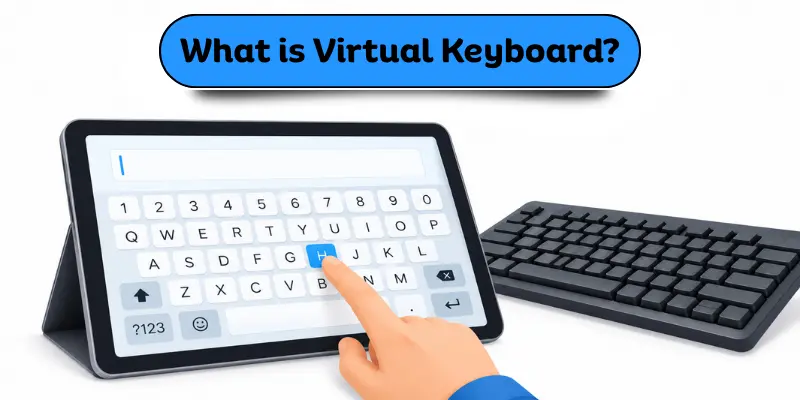
What Is Virtual Keyboard?
A virtual keyboard is a software-based keyboard that displays keys on a screen instead of using physical keys. It shows letters, numbers, symbols, and other keys that you can use for typing. You can select a key by touching the screen, clicking with a mouse, using a stylus, or using another supported input method.
An on-screen keyboard is a common example of a virtual keyboard. You can find one on smartphones, tablets, and computers. Unlike a physical keyboard, it does not need separate hardware with real keys.
Example of a Virtual Keyboard
The keyboard on a smartphone is a simple example. When you tap a text box, the virtual keyboard usually appears on the screen. You can then tap the letters to type your message.
How Does a Virtual Keyboard Work?
A virtual keyboard works by showing digital keys on a screen and accepting your input. When you select a key, the device processes it and enters the matching character into the active text field.
The Keyboard Appears on the Screen
A virtual keyboard usually appears when you select a text field or search box. On a smartphone, for example, tapping a message box can bring up the keyboard automatically. This gives you a way to type without a physical keyboard.
You Select a Key
You can select a virtual key by tapping it on a touchscreen. On a computer, you can usually click a key with a mouse. Some devices also support a stylus or another input method.
The Device Processes the Input
After you select a key, the device recognizes your input. It identifies the letter, number, or symbol linked to that key. The device then sends the input to the active text field.
The Character Appears on the Screen
The selected character appears in the active text field. For example, if you tap the letter A, the device enters “A” where you are typing. You can continue selecting keys to create words and sentences.
Predictive Text and Auto-Correction
Many virtual keyboards offer predictive text and auto-correction. Predictive text suggests words as you type. Auto-correction can fix common typing mistakes and replace them with the intended word.
Swipe Typing
Some touchscreen keyboards also support swipe typing. Instead of tapping each letter, you slide your finger across the letters of a word. The keyboard uses your movement to suggest or enter the word.
What Are the Types of Virtual Keyboards?
Virtual keyboards are one of the types of keyboards used for digital text input. The main virtual keyboard types include on-screen, projected, audio-based, and tactile keyboards.
On-Screen Virtual Keyboard
An on-screen virtual keyboard displays digital keys directly on a device screen. It is commonly used on smartphones, tablets, and computers.
Projected Virtual Keyboard
A projected virtual keyboard displays a keyboard layout on a flat surface, such as a desk. Users interact with the projected key positions to enter text.
Audio-Based Virtual Keyboard
An audio-based virtual keyboard uses sound or spoken cues to guide users during keyboard input. It is mainly used in some specialized applications.
Tactile Virtual Keyboard
A tactile virtual keyboard provides physical or haptic feedback when users interact with digital keys. For example, a device may provide a short vibration when a user taps a virtual key.
What Devices Use Virtual Keyboards?
Virtual keyboards are commonly found on devices that need text input without a separate physical keyboard. They appear on many digital devices, including smartphones, tablets, computers, kiosks, and smart TVs.
Smartphones
Smartphones commonly use virtual keyboards for entering text on the screen. They provide a quick way to type without physical keys.
Tablets
Tablets use on-screen keyboards to let users enter text without connecting a separate keyboard. The keyboard usually appears when a text field is selected.
Computers and Laptops
Computers and laptops can provide an on-screen keyboard when needed. Users can select its digital keys with a mouse, touchscreen, or another supported input method.
Kiosks and Self-Service Machines
Kiosks and self-service machines may use virtual keyboards on their touchscreens. This allows users to enter information directly on the device.
Smart TVs and Other Devices
Smart TVs and other digital devices can use virtual keyboards for on-screen text entry. They are useful when the device does not have a physical keyboard.
What Are the Uses of Virtual Keyboard?
A virtual keyboard lets users enter text and other characters without a physical keyboard. Common keyboard uses include typing, searching, entering information, and supporting different languages and input needs.
Typing Text
- Write words, sentences, notes, and documents.
- Enter text directly into a text field or document.
Searching the Internet
- Enter search terms on phones, tablets, computers, and other devices.
- Type keywords into search boxes without a physical keyboard.
Writing Emails and Messages
- Write and send emails, text messages, and online messages.
- Enter text when a physical keyboard is not available.
Entering Data
- Fill out forms and enter names, numbers, and other information.
- Enter data into websites, apps, and digital forms.
Typing in Different Languages
- Switch between languages while typing.
- Enter different character sets and language-specific characters.
Entering Numbers and Special Characters
- Enter numbers, punctuation marks, symbols, and other characters.
- Use digital keys for characters that may not appear on the main keyboard layout.
Supporting Accessibility
- Provide an alternative way to enter text.
- Help users who may find digital input easier than using physical keys.
What Are the Advantages of a Virtual Keyboard?
A virtual keyboard offers several benefits over relying only on physical keyboard hardware. It provides flexible input and useful settings for different devices and user needs.
No Physical Keyboard Is Required
- A virtual keyboard provides software-based input without separate physical keys.
- This is useful on devices that do not have a built-in physical keyboard.
Easy to Use on Touchscreen Devices
- Users can tap digital keys directly on a touchscreen.
- This provides a simple and natural way to enter information on compatible devices.
Supports Multiple Languages
- Many virtual keyboards support multiple languages and character layouts.
- Users can switch between languages without changing the physical keyboard.
Useful for Accessibility
- A virtual keyboard can provide an alternative input method for some users.
- Touch input and adjustable settings may make digital input easier for certain users.
Helpful When a Physical Keyboard Is Unavailable
- A virtual keyboard can provide a backup when a physical keyboard cannot be used.
- For example, you can use an on-screen keyboard if your computer’s physical keyboard stops working.
Customizable Layouts and Settings
- Many virtual keyboards let users change settings such as layout, language, and keyboard size.
- Available options depend on the device and keyboard software.
What Are the Disadvantages of a Virtual Keyboard?
Virtual keyboards are convenient, but they also have some limitations. They may be less comfortable for long typing and can offer less control than a physical keyboard in some situations.
Can Be Slower for Long Typing
- Virtual keyboards may be slower for users who type for long periods.
- Physical keyboards can be more comfortable for heavy or fast typing.
Takes Up Screen Space
- A virtual keyboard can cover part of the display while it is open.
- This leaves less space for viewing the app, webpage, or document.
Lacks Physical Key Feel
- Digital keys do not provide the same physical feel as traditional keys.
- Some users may find it harder to type without physical key feedback.
Can Cause Typing Errors
- Small digital keys can make it easier to tap the wrong key.
- Accidental touches may cause typing mistakes, especially on smaller screens.
Features Depend on the Device and Software
- Available keyboard features can vary by device, operating system, and software.
- Options such as layouts, languages, and input methods may not be the same on every device.
Virtual Keyboard vs Physical Keyboard
The main difference between a virtual keyboard and a physical keyboard is how they provide input. A virtual keyboard uses digital keys on a screen, while a physical keyboard uses real keys and separate hardware.
| Feature | Virtual Keyboard | Physical Keyboard |
| Keys | Digital keys | Physical keys |
| Hardware | Usually no separate keyboard | Requires physical hardware |
| Input | Touch, mouse, stylus, or other supported methods | Physical key presses |
| Screen space | Uses part of the screen | Does not cover the screen |
| Key feel | No traditional physical key feel | Provides physical feedback |
| Layout | Often customizable | Usually fixed |
| Best for | Touch devices and flexible input | Fast and long typing |
Takeaway: A virtual keyboard is useful when you need flexible, screen-based input. A physical keyboard is often better for fast and extended typing.
How to Use a Virtual Keyboard on Windows
Windows includes a built-in On-Screen Keyboard that lets you enter text without a physical keyboard. You can open it and select digital keys with a mouse or another supported input method.
For detailed instructions, see our guide on how to use a virtual keyboard on computer.
How to Open the On-Screen Keyboard
Press Windows + Ctrl + O to open the On-Screen Keyboard quickly. You can also open it through Start → Settings → Accessibility → Keyboard and turn on On-Screen Keyboard.
How to Type With a Virtual Keyboard
Open a text field, such as a search box or document. Select the required keys on the On-Screen Keyboard with your mouse or another supported pointing device.
Conclusion
What is virtual keyboard? It is a software-based keyboard that displays digital keys on a screen. It lets you enter text, numbers, and symbols without a physical keyboard.
In my experience with computers, a virtual keyboard is a useful backup when a physical keyboard is unavailable. If you are a beginner, try the virtual keyboard on your device and explore its basic settings.
FAQs About Virtual Keyboards
Here are some common questions about virtual keyboards, their features, and how they work. These answers can help you understand virtual keyboards and solve common problems.
An on-screen keyboard is a type of virtual keyboard that displays digital keys on a device screen. The term “virtual keyboard” is broader and can include other forms, such as projected keyboards and specialized implementations.
A common on-screen virtual keyboard does not require special hardware. It uses the device’s existing screen and input methods, such as touch or a mouse. Some specialized virtual keyboards, such as projected keyboards, may use additional hardware.
A virtual keyboard is generally safe when it comes from a trusted device or software. However, some third-party keyboard apps may request permissions that can affect your privacy.
Yes, many virtual keyboards can work without an internet connection. Basic typing does not usually need the internet. However, features such as online word suggestions or cloud-based services may require a connection.
A virtual keyboard can replace a physical keyboard for basic typing and text entry. However, a physical keyboard is often more suitable for fast, long, or frequent typing because it provides physical keys and feedback.
A virtual keyboard may not appear because it is disabled or the device does not open it automatically. Check the keyboard settings and make sure the on-screen keyboard is enabled. If the problem continues, close and reopen the app or restart the device.



- Be Respectful
- Stay Relevant
- Stay Positive
- True Feedback
- Encourage Discussion
- Avoid Spamming
- No Fake News
- Don't Copy-Paste
- No Personal Attacks
- Be Respectful
- Stay Relevant
- Stay Positive
- True Feedback
- Encourage Discussion
- Avoid Spamming
- No Fake News
- Don't Copy-Paste
- No Personal Attacks
