Types of Virtual Keyboards: 5 Main Types With Examples
Published: 19 Sep 2026
Have you ever needed to type without a physical keyboard? A virtual keyboard can help in this situation. But virtual keyboards do not all look or work the same way.
There are several types of virtual keyboards. Some show keys on a screen. Others use projection, audio, touch feedback, or hand movements. In my years of working with computers, I have seen how these differences can confuse beginners.
In this guide, I will explain the main virtual keyboard types in simple terms. You will learn their common uses, benefits, limitations, and examples.
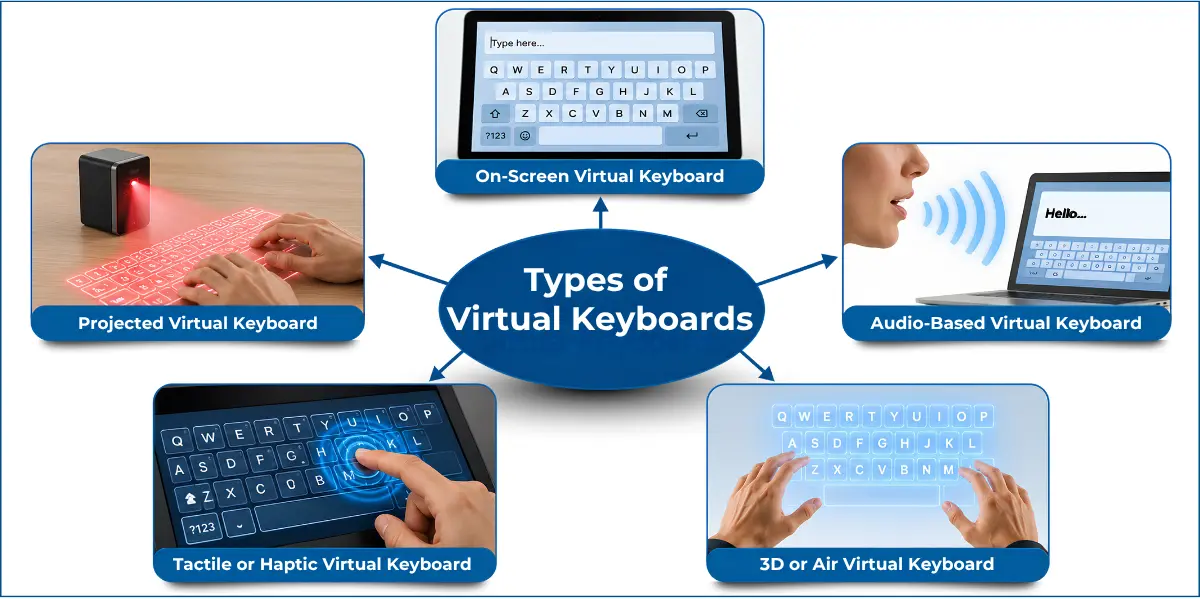
What Are the Types of Virtual Keyboards?
Virtual keyboards come in different types. Some show keys on a screen, while others project a keyboard onto a surface. Some also use audio, touch feedback, or hand movements to let users enter text.
Quick list of all types of virtual keyboards:
- On-Screen Virtual Keyboard
- Projected Virtual Keyboard
- Audio-Based Virtual Keyboard
- Tactile or Haptic Virtual Keyboard
- 3D or Air Virtual Keyboard
Terms such as online keyboard, accessibility keyboard, and multilingual keyboard may describe how a keyboard is used or set up. They are not always separate types of virtual keyboards.
Let’s explore these virtual keyboard types with examples to understand them better.
On-Screen Virtual Keyboard
An on-screen virtual keyboard is one of the most common types of virtual keyboards. It shows digital keys on the screen, so you can type without a physical keyboard.
You can select these keys with a touchscreen or mouse. For example, a smartphone shows a virtual keyboard when you tap a text box.
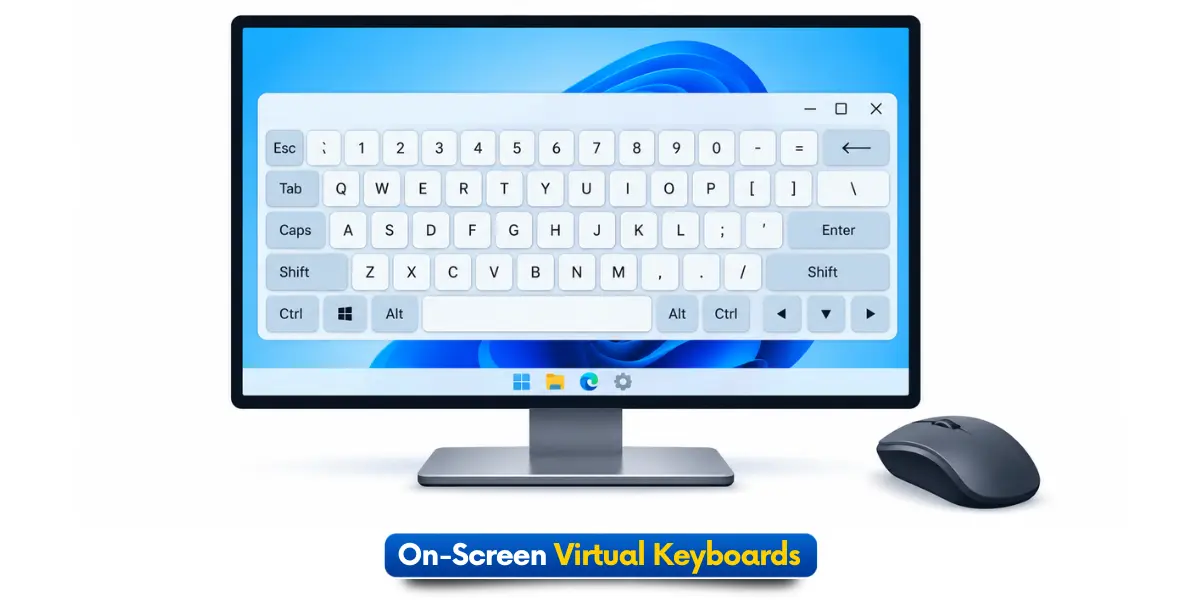
How Does an On-Screen Virtual Keyboard Work?
It follows a simple process:
- The keyboard appears on the screen.
- You select the key you want to use.
- The device receives your input.
- The character appears in the text field.
Common Uses
You can find on-screen virtual keyboards on:
- Smartphones
- Tablets
- Touchscreen computers
- Public kiosks
- Devices with accessibility features
Benefits
- Easy to use on touchscreen devices.
- Lets you type without a physical keyboard.
- Supports different languages and keyboard layouts.
- Useful when a physical keyboard is not available.
Limitations
- Takes up part of the screen.
- Small keys can be harder to tap.
- Typing can feel slower for long tasks.
- Gives less physical feedback than real keys.
Examples
- Smartphone keyboard
- Tablet keyboard
- Windows On-Screen Keyboard
- Touchscreen kiosk keyboard
For detailed steps, see my guide on how to use a virtual keyboard on a computer.
Projected Virtual Keyboard
A projected virtual keyboard displays a keyboard layout on a flat surface, such as a desk or table. It lets you type without carrying a physical keyboard.
Unlike an on-screen keyboard, its keys do not appear on the device display. Instead, a projector shows the keyboard on a nearby surface, and you interact with the projected keys to enter text.
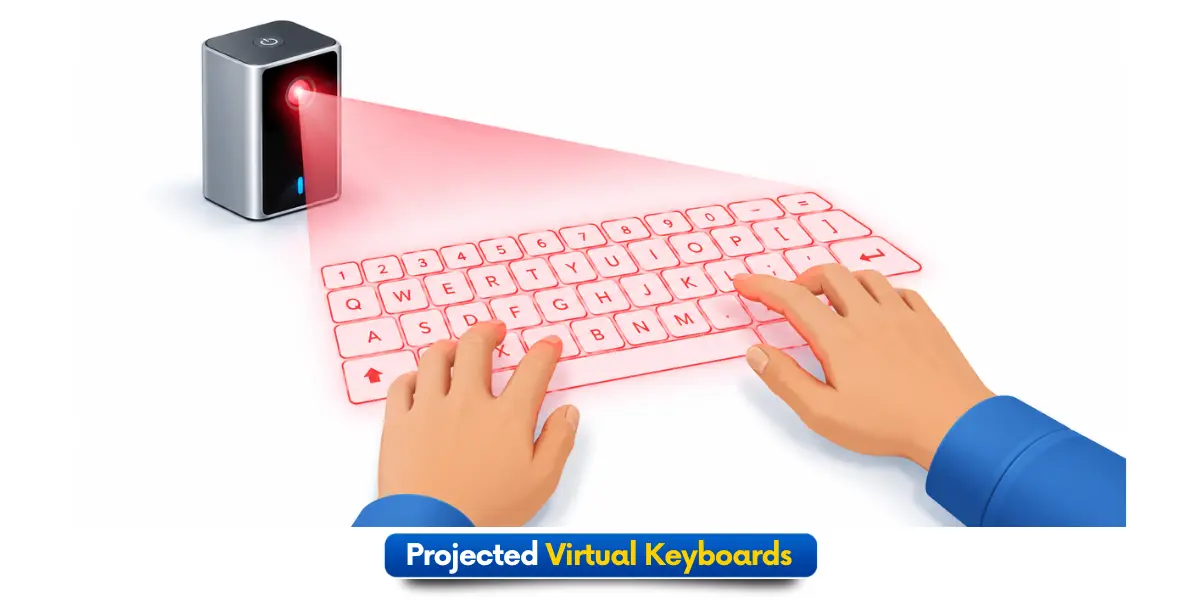
How Does a Projected Virtual Keyboard Work?
It follows a simple process:
- A small projector displays the keyboard layout on a flat surface.
- Sensors detect your finger movement over the projected keys.
- The system converts your interaction into keyboard input.
- The connected device processes the input as typed text.
Common Uses
Projected virtual keyboards can be useful for:
- Portable typing
- Compact typing systems
- Demonstration systems
- Experimental interfaces
Benefits
- Easy to carry and set up.
- Provides a full keyboard layout from a small device.
- Useful for portable typing.
- Keeps the device screen free for other content.
Limitations
- Requires a suitable flat surface.
- Bright light can make the projection harder to see.
- Typing may feel less natural than using physical keys.
- Finger detection may not always work accurately.
Examples
- Projection keyboard
- Laser-projected keyboard system
- Portable projected keyboard
Audio-Based Virtual Keyboard
An audio-based virtual keyboard uses sound, spoken input, or audio cues to help users enter text. It provides another way to interact with a computer when using physical keyboard keys is difficult.
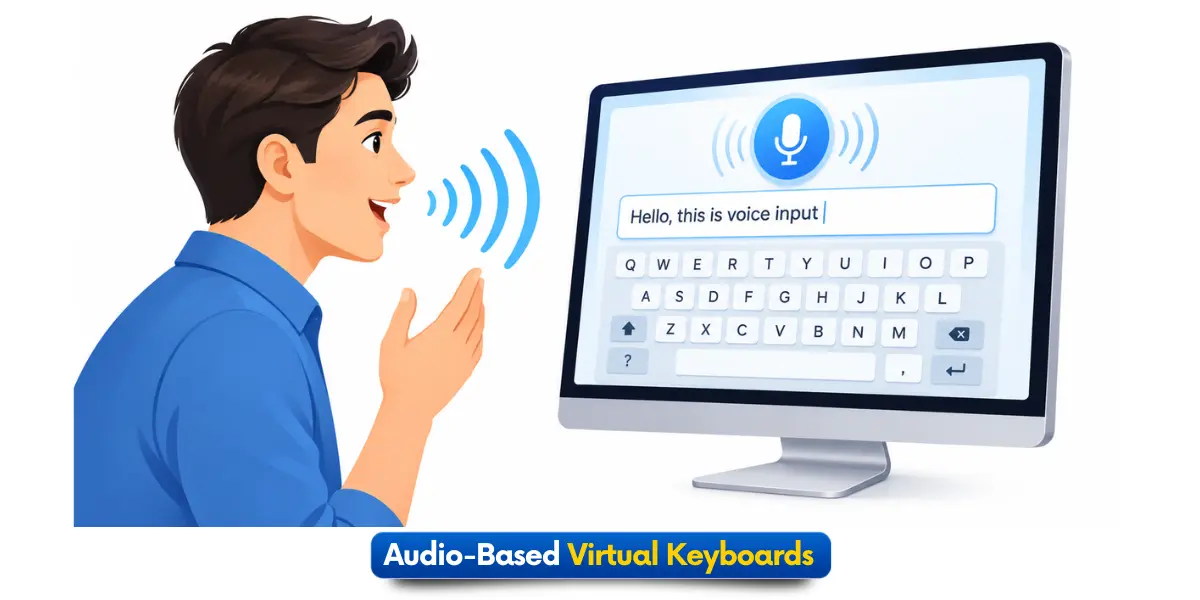
How Does an Audio-Based Virtual Keyboard Work?
It follows a simple process:
- The system provides audio cues or accepts supported spoken input.
- The user provides input through speech or another audio interaction.
- The system processes the audio input.
- The selected letters, words, or commands are entered into the computer.
Not every speech-to-text or voice typing tool is an audio-based virtual keyboard. The audio or voice input must be part of the keyboard system.
Common Uses
Audio-based virtual keyboards can be useful for:
- Accessibility
- Hands-free input
- Specialized computer systems
- Audio-guided text entry
Benefits
- Helps users who have difficulty using physical keyboard keys.
- Supports hands-free input in suitable systems.
- Audio cues can guide users during text entry.
- Provides another way to interact with a computer.
Limitations
- Background noise can affect audio input.
- Speech recognition may not always understand words correctly.
- Some systems may need special software or hardware.
Examples
- Audio-guided virtual keyboard
- Speech-supported keyboard interface
- Accessible audio text-entry system
Tactile or Haptic Virtual Keyboard
A tactile or haptic virtual keyboard gives you touch feedback when you select a digital key. This feedback helps you know that your tap was registered.
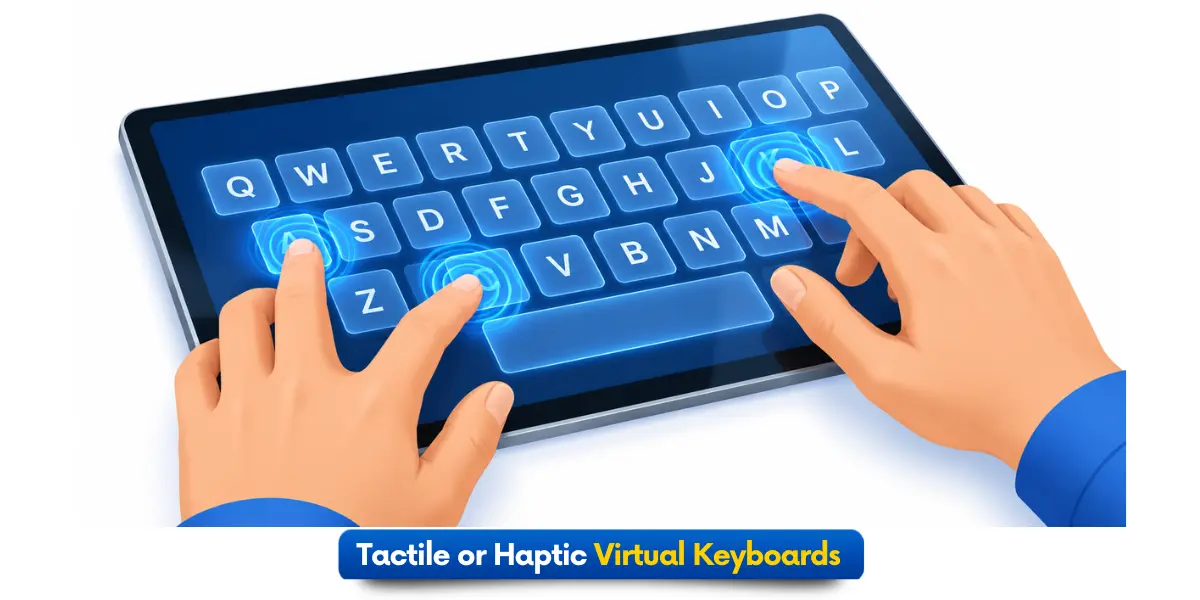
How Does Haptic Feedback Work?
The process is simple:
- You tap a virtual key on a touchscreen.
- The device detects your touch.
- It gives a short vibration or other touch feedback.
- You know that the key was selected without using a physical key.
For example, a smartphone keyboard may vibrate briefly when you tap a letter. The keyboard stays digital, but the feedback makes typing feel more responsive.
Common Uses
Tactile or haptic virtual keyboards can be useful for:
- Smartphones
- Touchscreen devices
- Accessibility interfaces
- Mobile typing
Benefits
- Provides feedback when a tap is registered.
- Makes digital typing feel more responsive.
- Adds a physical sensation to digital typing.
- Can help users who rely on touch feedback.
Limitations
- Vibration can use extra battery power.
- Some users may find repeated feedback distracting.
- Not every device supports the same haptic features.
- Feedback may feel different across devices.
Examples
- Haptic smartphone keyboards
- Touchscreen interfaces with vibration feedback
- Specialized haptic interfaces
3D or Air Virtual Keyboard
A 3D or air virtual keyboard lets users enter text through hand movements or gestures in the air. It is an emerging form of virtual keyboard technology used mainly in advanced and experimental systems.
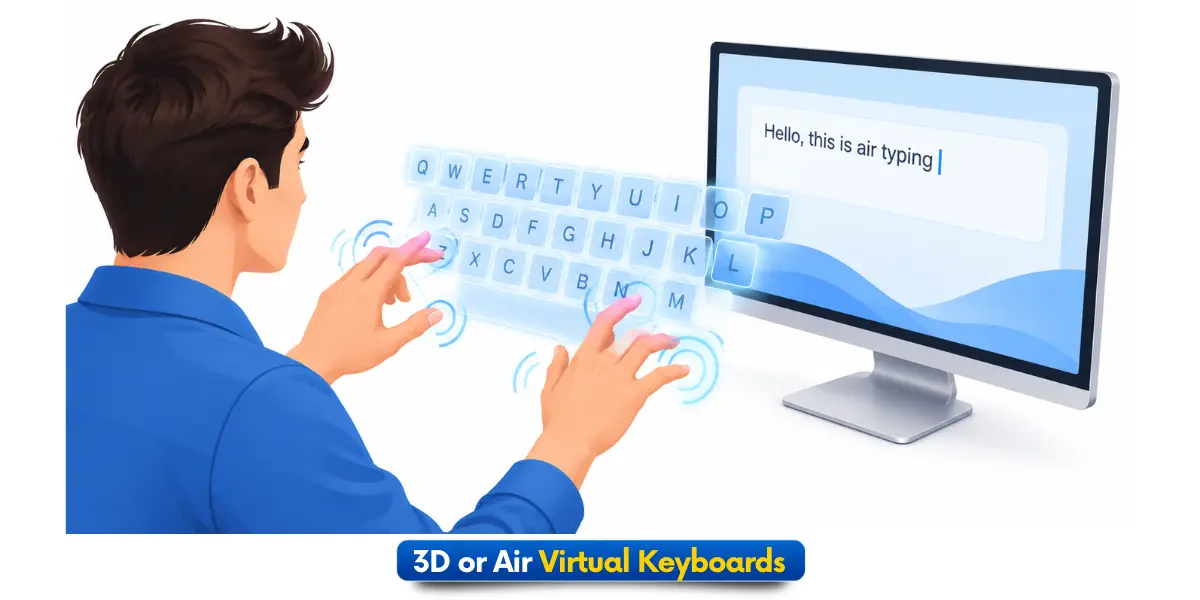
How Does a 3D or Air Virtual Keyboard Work?
The basic process may involve:
- Cameras to capture hand movements.
- Motion sensors to detect movement in space.
- Hand tracking to follow finger movements.
- Gesture recognition to identify the intended input.
- The system converts the recognized gesture into keyboard input.
Common Uses
3D or air virtual keyboards are mainly explored in:
- Augmented reality (AR)
- Virtual reality (VR)
- Experimental interfaces
- Emerging computer systems
Benefits
- Allows interaction without physical keys.
- Supports typing in AR and VR environments.
- Creates new ways to interact with digital systems.
- Useful for testing emerging input technologies.
Limitations
- Hand movements may not always be detected accurately.
- Typing can take practice.
- Requires compatible cameras, sensors, or tracking technology.
- It is not a common replacement for a desktop keyboard.
Examples
- AR keyboard interfaces
- VR typing systems
- Hand-tracking keyboard interfaces
Other Related Forms of Virtual Keyboards
Not all virtual keyboard terms mean different types of keyboards. Some terms explain how a keyboard is used or what it is used for. Online, accessibility, and multilingual virtual keyboards are useful examples.
Online Virtual Keyboard
An online virtual keyboard is a keyboard that appears on a website. You can use it in a web browser to type letters, numbers, and symbols without a physical keyboard.
How Does an Online Virtual Keyboard Work?
The keyboard appears on a web page. You click or tap a key to enter a character. The selected character then appears in the text box.
Common Uses
Online virtual keyboards can help with:
- Typing in different languages
- Entering special characters
- Typing symbols that are hard to find
- Typing on a shared computer
An online virtual keyboard is mainly a browser-based keyboard interface. It is not a separate type of virtual keyboard technology.
Accessibility Virtual Keyboard
An accessibility virtual keyboard makes computer typing easier for people with different needs. It can use on-screen keys, audio cues, touch feedback, or other input methods.
Accessibility describes the purpose of the keyboard. It does not mean that it is a separate type of virtual keyboard.
Multilingual or Language Virtual Keyboard
A multilingual virtual keyboard lets you type in two or more languages. It can provide different characters, symbols, and keyboard layouts for each language.
Common Features
- Supports different languages.
- Provides language-specific characters and symbols.
- Offers different keyboard layouts.
- Lets users switch between languages.
A multilingual keyboard is mainly a language or keyboard layout setting. It is not a completely different type of virtual keyboard technology.
What Is the Difference Between a Virtual Keyboard and an On-Screen Keyboard?
A virtual keyboard and an on-screen keyboard are similar, but they are not exactly the same. A virtual keyboard is a general term, while an on-screen keyboard is one type of virtual keyboard.
Virtual Keyboard
A virtual keyboard is a digital keyboard that lets you type without physical keys. It can use different ways to let you enter text.
For example
- Keys can appear on a screen.
- A keyboard can be projected onto a table.
- You can enter text using touch, mouse clicks, or gestures.
- Some systems use audio or other supported input methods.
On-Screen Keyboard
An on-screen keyboard is a type of virtual keyboard. Its keys appear directly on the device screen.
For example
- Smartphone and tablet keyboards
- Windows On-Screen Keyboard
- Touchscreen kiosk keyboards
- On-screen keyboards for accessibility
Virtual Keyboard vs On-Screen Keyboard
| Feature | Virtual Keyboard | On-Screen Keyboard |
| Meaning | General term | One type of virtual keyboard |
| Keys | Can appear in different ways | Appear on the screen |
| How you type | Can vary | Touch, mouse, etc. |
| Example | Projected keyboard | Smartphone keyboard |
Key Takeaway: An on-screen keyboard is a type of virtual keyboard, but not every virtual keyboard is an on-screen keyboard.
Comparison of Virtual Keyboard Types
Each virtual keyboard type works in a different way. This table shows how each type helps you enter text.
| Type | How It Works | Common Use | Example |
| On-Screen | Digital keys appear on a screen | Phones, tablets, computers | Smartphone keyboard |
| Projected | Projects a keyboard layout onto a surface | Portable typing | Projection keyboard |
| Audio-Based | Uses sound or spoken input | Accessibility | Speech-based interface |
| Tactile/Haptic | Gives touch or vibration feedback | Touch devices | Haptic smartphone keyboard |
| 3D/Air | Detects hand movements or gestures | AR and VR | Hand-tracking interface |
Takeaway: Each type uses a different way to help you enter text, based on the device and how you interact with it.
Conclusion
Not all virtual keyboards work the same way, and each one has a useful purpose. On-screen keyboards are common, while projected, audio-based, haptic, and 3D keyboards offer different ways to enter text.
Online, accessibility, and multilingual keyboards are made for specific uses or settings. The types of virtual keyboards you use depend on your device and typing needs.
In my experience working with computers, on-screen keyboards are useful for everyday typing. Explore the different options and choose the one that fits your device and typing needs.
Frequently Asked Questions About Virtual Keyboard Types
Still have questions about virtual keyboard types? Here are quick answers to common questions beginners often ask.
The on-screen virtual keyboard is one of the most common types. You can find it on smartphones, tablets, touchscreen computers, and other digital devices.
Yes. Computers can use virtual keyboards for typing without a physical keyboard. For example, Windows provides an On-Screen Keyboard that you can use with a mouse or touchscreen.
Not exactly. A touch keyboard is a type of on-screen keyboard designed for touch input. The term virtual keyboard is broader and includes other forms, such as projected and air keyboards.
Yes. You can use some virtual keyboards with a mouse, touchpad, or other input device. For example, you can use the Windows On-Screen Keyboard without a touchscreen.
Yes, a virtual keyboard can handle many basic typing tasks. However, a physical keyboard may work better for long typing sessions, gaming, or tasks that need fast and accurate key presses.

- Be Respectful
- Stay Relevant
- Stay Positive
- True Feedback
- Encourage Discussion
- Avoid Spamming
- No Fake News
- Don't Copy-Paste
- No Personal Attacks
- Be Respectful
- Stay Relevant
- Stay Positive
- True Feedback
- Encourage Discussion
- Avoid Spamming
- No Fake News
- Don't Copy-Paste
- No Personal Attacks
